

Meta Tech Provider

Help Center - Articles Detail

How to Add Agents and Managers to the Wavixo App
As your team grows, you can add agents and managers to Wavixo so multiple people can handle chats, leads, and customer support from the same platform. Here is how to set up a new team member in a few steps.
Steps to Add an Agent or Manager
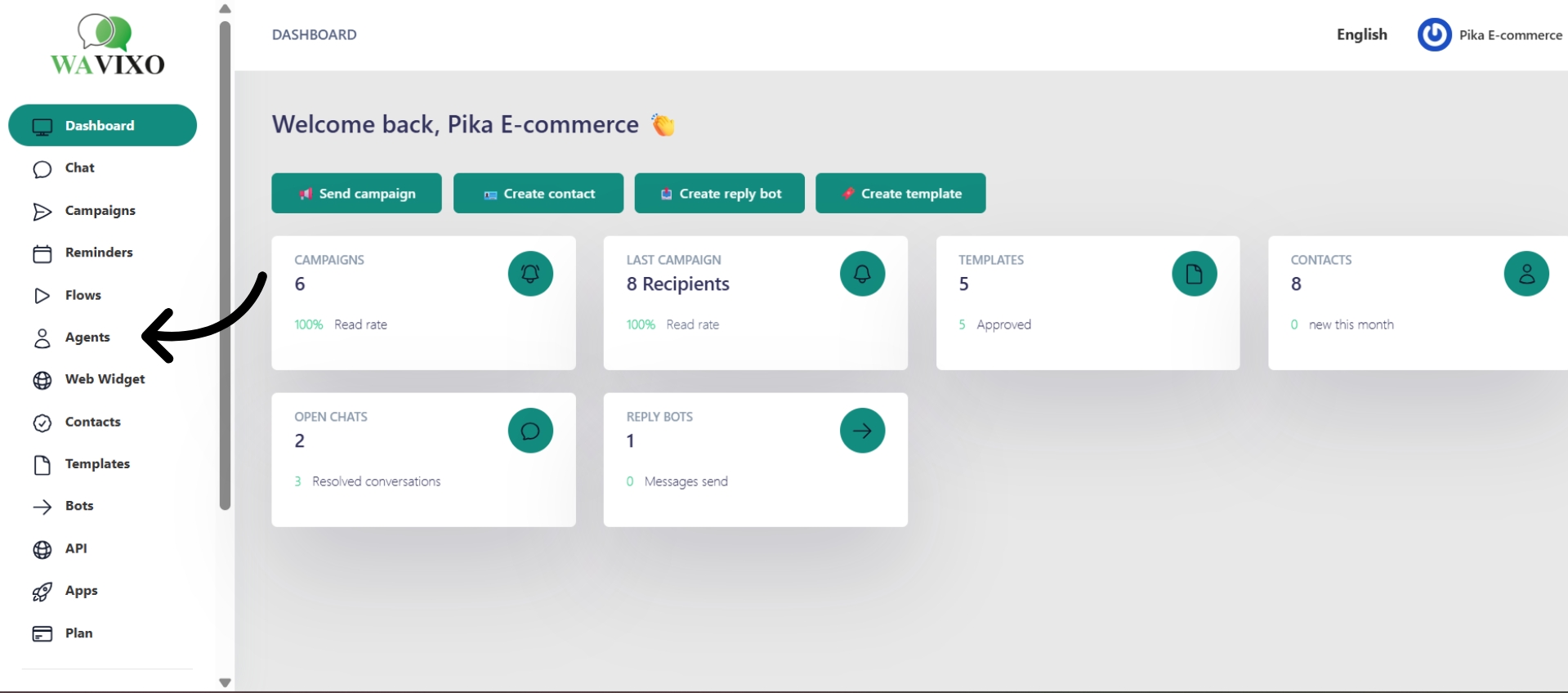
Step 1: Go to the Agents Section
From your Wavixo dashboard, click Agents in the left navigation bar. This is where all team members are managed.
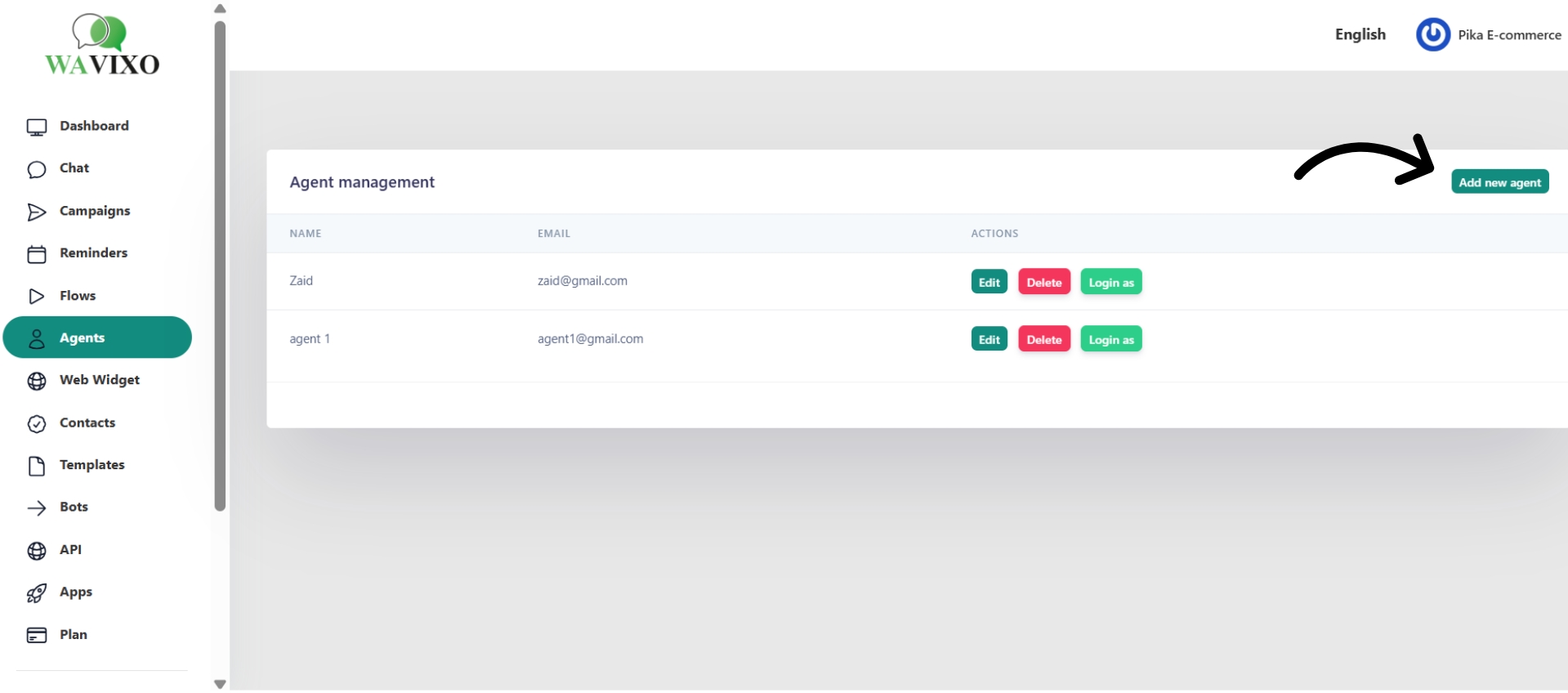
Step 2: Click "Add New Agent"
This opens a form to enter the new team member's details.
Step 3: Enter the Agent Details
Fill in the agent's name, email address, and a password. Make sure the email is correct — this is what the agent will use to log in.
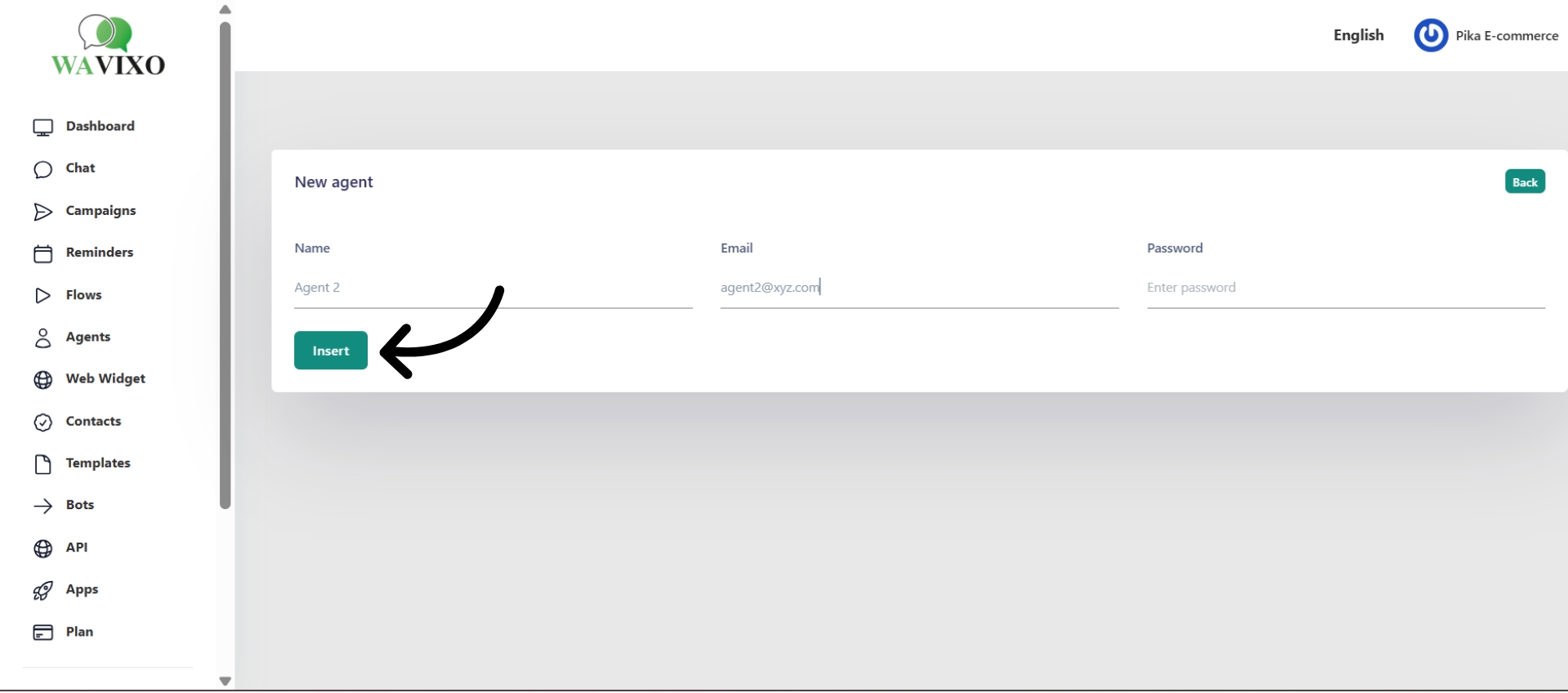
Step 4: Click "Insert"
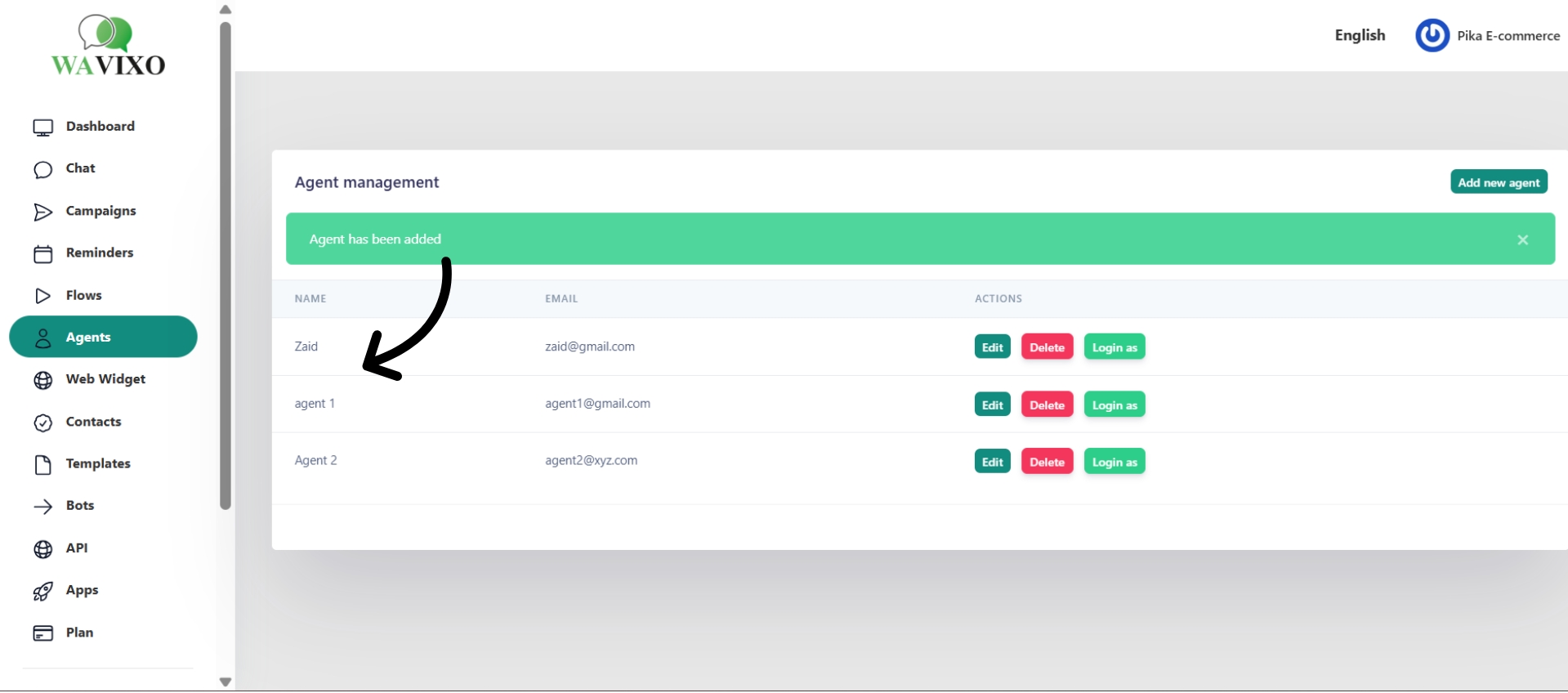
Review the details and click Insert. The agent account will be created and they can log in to Wavixo immediately to access conversations and manage customer interactions.
A Few Tips
Use strong passwords. Each agent account should have a secure, unique password to protect access to your customer data.
Define roles upfront. Clarify whether each person is handling support, sales, or management before they start — this prevents overlap and missed conversations.
Only add who you need. Limit platform access to team members who are actively managing customer communication.
Make your Productivity
more efficient. From this time.
Get the Demo and unplash your productivity. Feel Free to get the
latest Technology. Have a good time
