

Contact Us
-
Address: B-26, B Block, Sector 2, Noida, Uttar Pradesh 201301
-
Email: Contact@wavixo.io
-
Call: +91 9625655385

Razorpay

Automate Razorpay Payment Notifications on WhatsApp
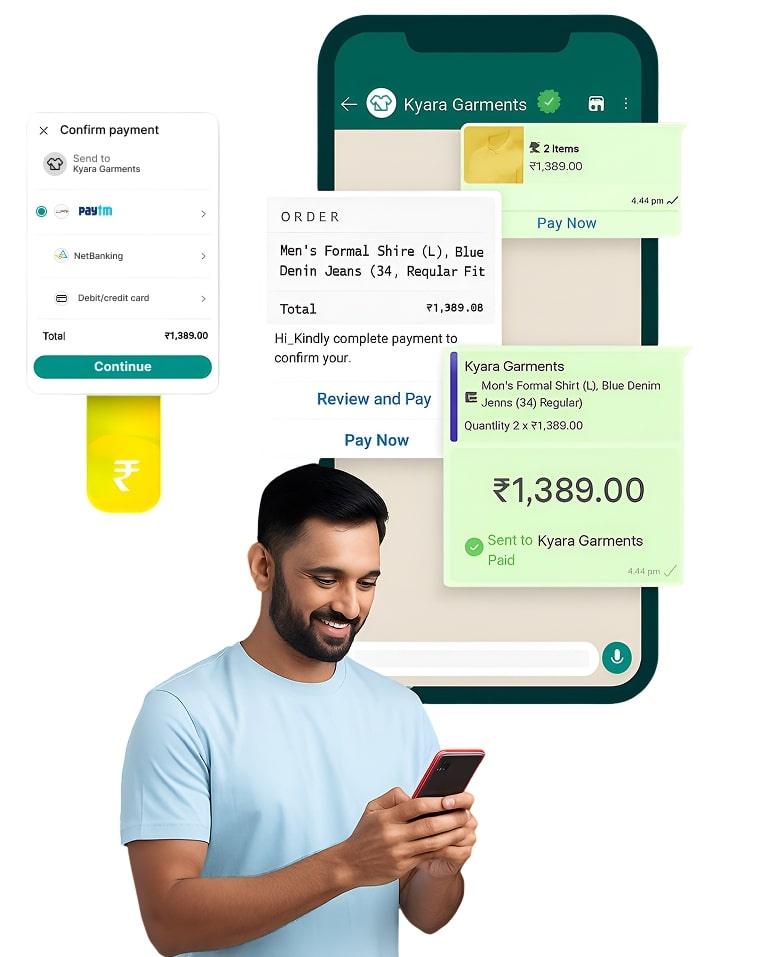
Integrate Razorpay with WhatsApp and get 3x payments done. Faster.

Benefits of connecting Razorpay with WAvixo
Payment Links & Invoices
Automate personalized WhatsApp reminders to customers who left items in their cart to complete their purchase.
Refund & Subscription
Send Automated Notifications whenever a refund is processed or Subscription is halted.
Broadcasting & Live Chat
All messages are driven from your official Whatsapp Business API Account. Broadcast Messages & Solve for Queries via Live Chat/Chatbots using WAvixo
Trusted by 50+ early adopters — and growing every month.






Step-by-Step Guide
Connecting Razorpay with WAvixo
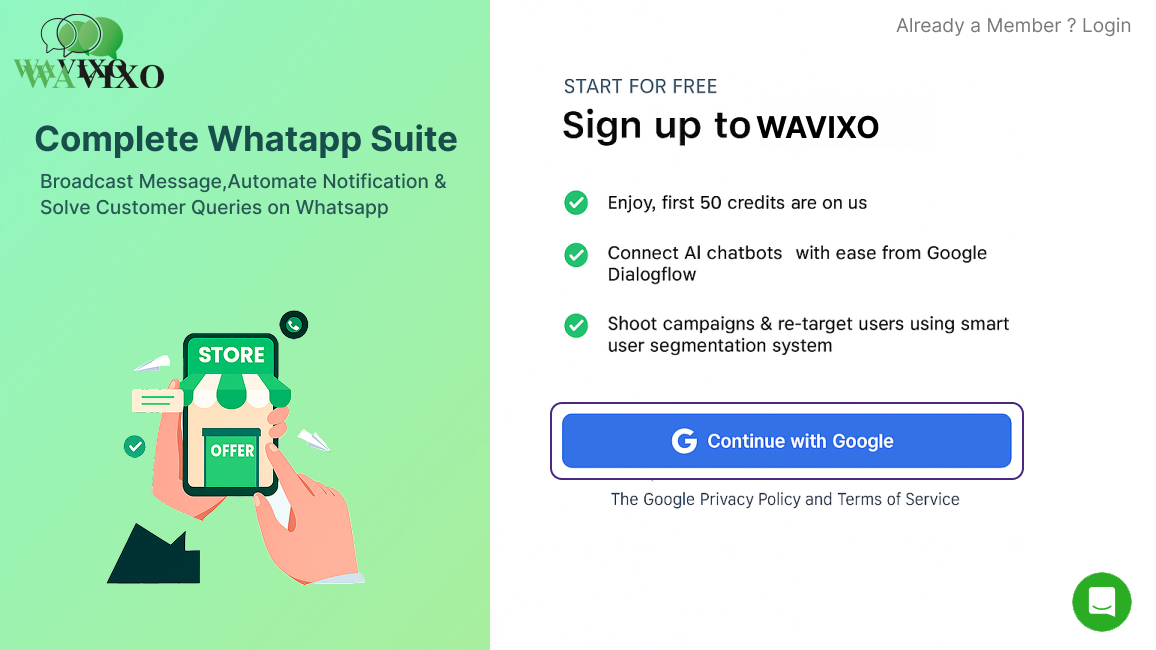
#1 Signup on WAvixo
To integrate Razorpay with WhatsApp, You need to Signup on WAvixo & Create a Project.
One Project basically represents on Business or one Whatsapp Business Number.
#2 Go to the Integrations Tab
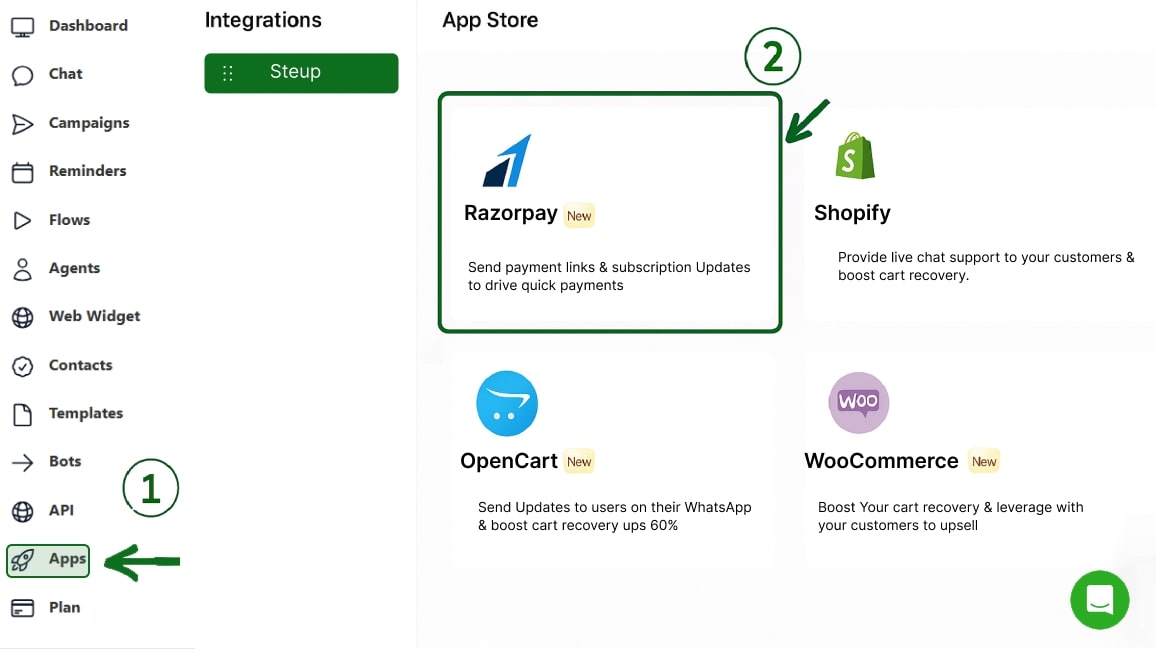
After Creating the Project, Enter the Project and Click on the Integrations tab in the Left Menu bar.
Once on Integrations, In the Discover tab, you'll find Razorpay App. Please Click on the Razorpay App.
#3 Apply for the WhatsApp Business API
You now need to Apply for the Whatsapp Business API to get your Official Whatsapp Profile through which you will be automating all the notifications.
• Go to the Get Started tab on the Razorpay
• Click on the First Menu -> Get WhatsApp Business API
• Click on "Apply Now"
• Fill the 4 Step form.
• WhatsApp API might take 1-3 Days to get Approval
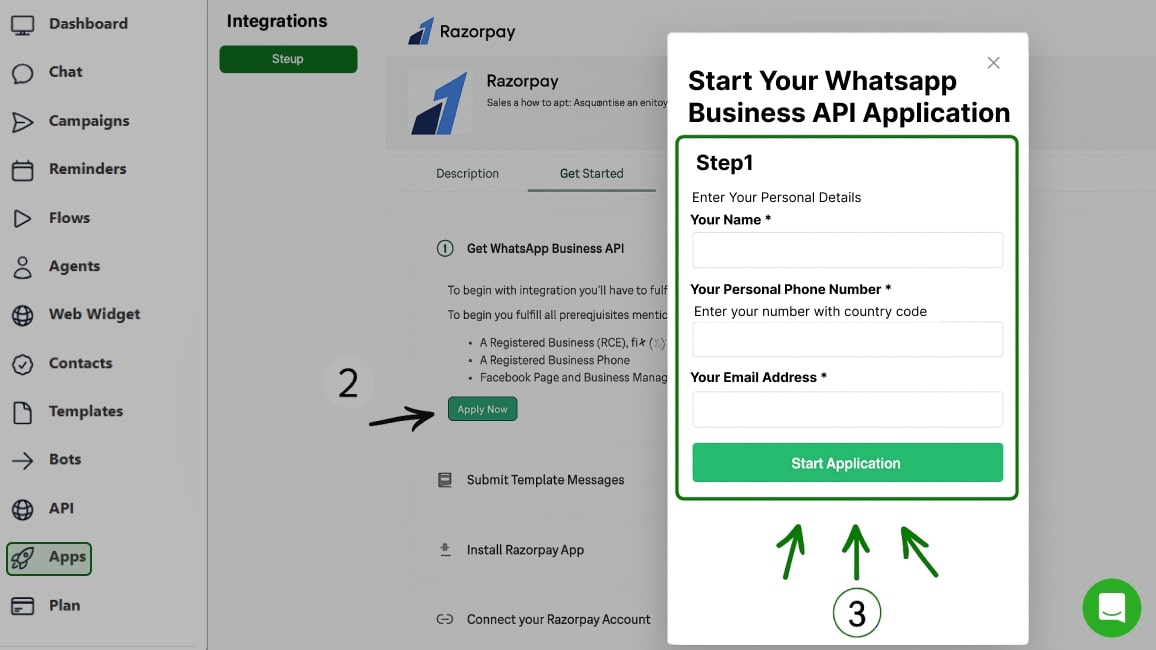
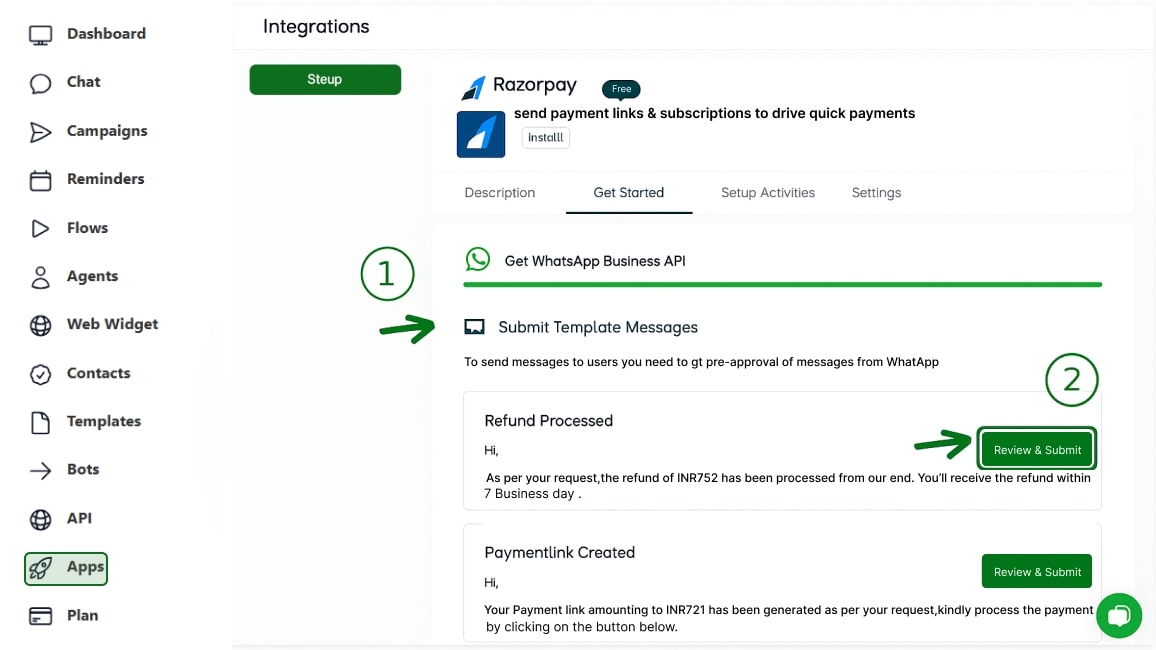
#4 Template Message Approval
Once your Whatsapp Business API is approved, you'll need to get the Template Messages approved that you wish to trigger on various Razorpay Events.
• In the Get Started Tab, Click on Submit Template Messages
• You'll see Sample Template messages, Review and Submit.
• Template Messages take 1 minute for Approval.
Note: In certain cases, the approval process can extend to up to 24 hours.
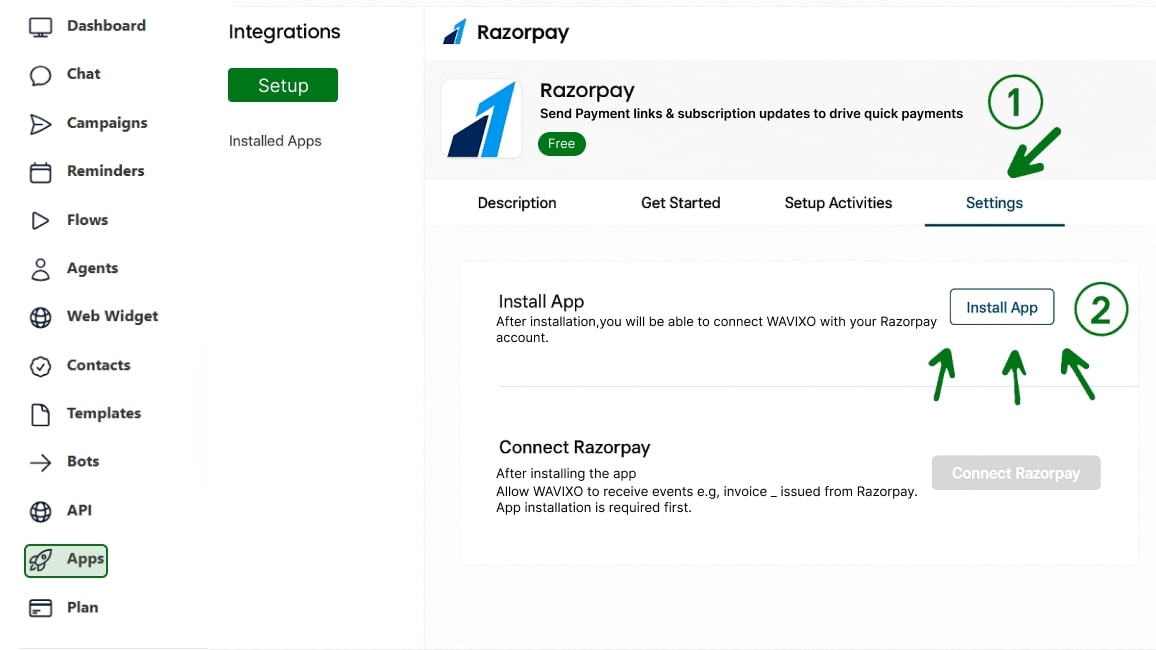
#5 Install Razorpay App
• You can also go to the Settings tab for this Step or do it from the third step on Get Started tab.
• Click on "Install App" and your App will go Live
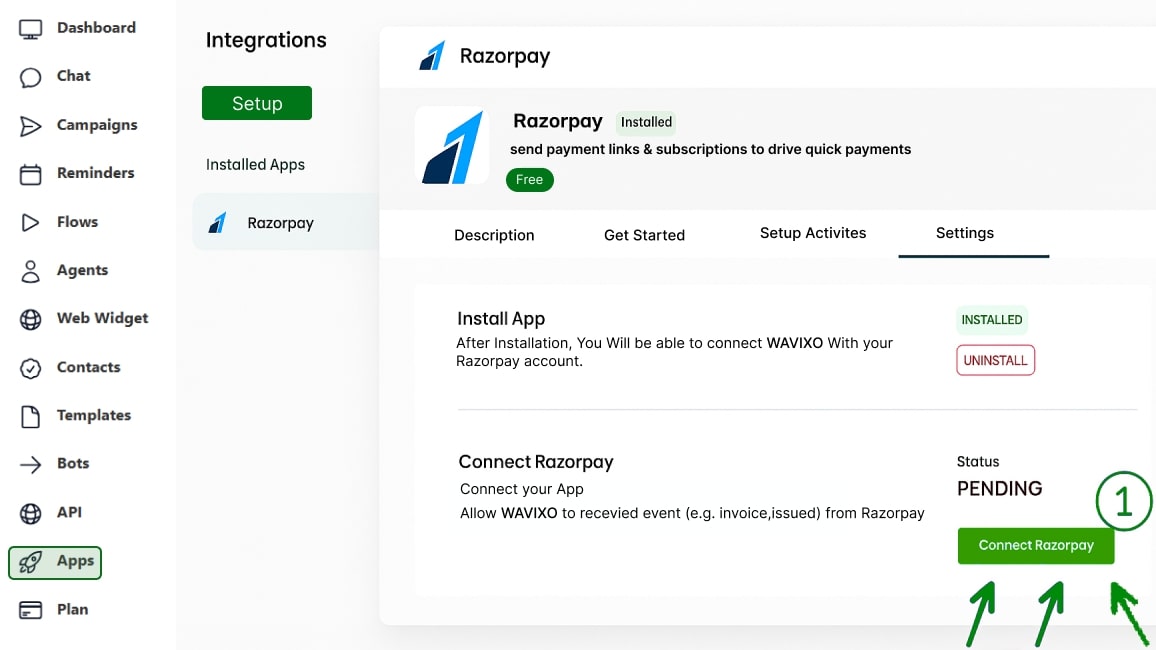
#6 Connect Your Razorpay Account
• In the Settings section, Click on Connect Razorpay
• It'll take you to a new tab, Authorize the permission
• Now your Razorpay account is Connected to WAvixo
#7 Setup Activity - I
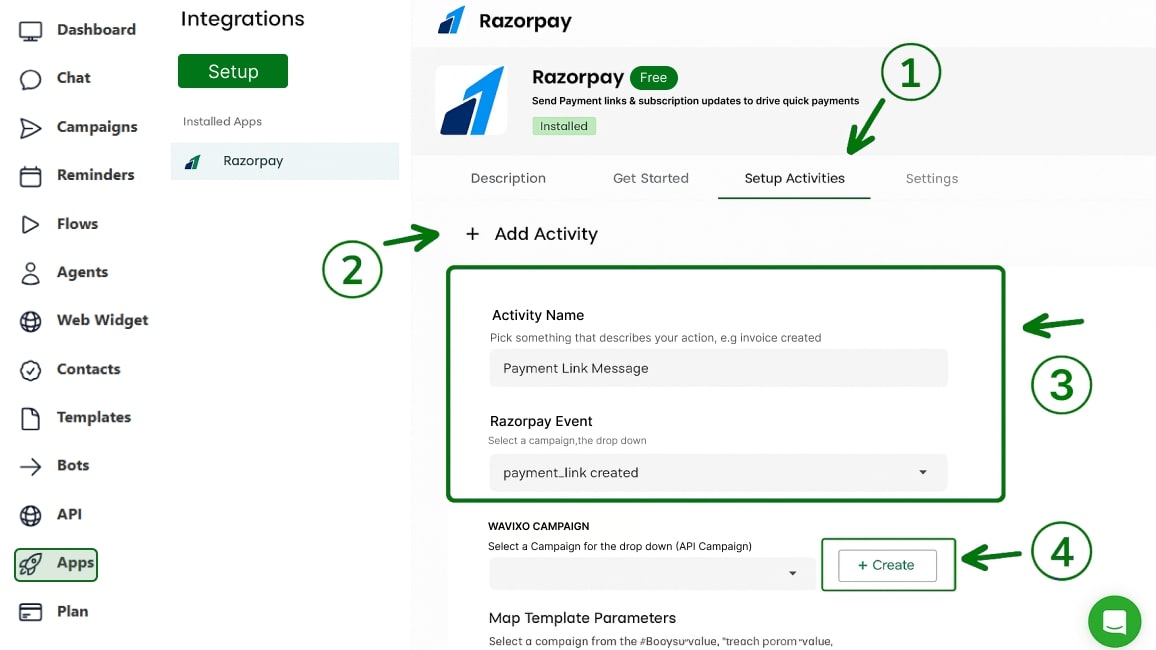
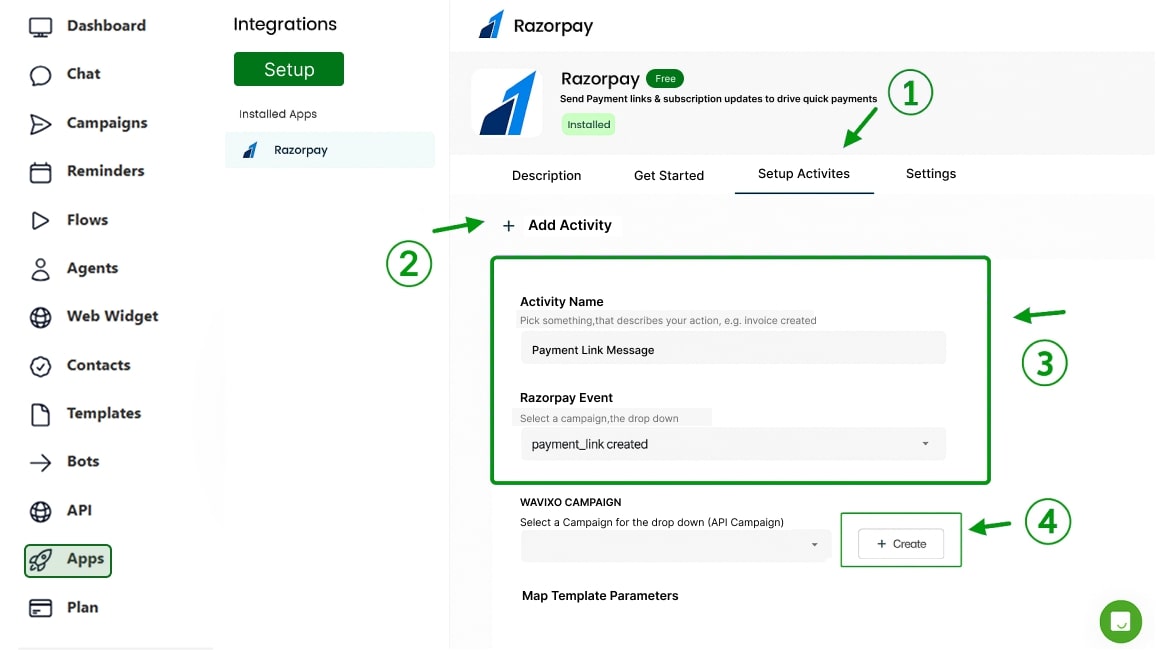
An Activity simply means a connection between any Razorpay Event and WAvixo's WhatsApp Campaign.
• Go to Setup Activities Tab,Click on "+ Activity" within this tab
• Give the Activity any name for reference For Eg. Payment Link
• Choose the Razorpay Event for which you wish to trigger the campaign
• Choose the API Campaign you wish to connect above Razorpay event
(You can also create an API campaign by Clicking on Create)
#8 Setup Activity - II
Map the Parameters for the Campaign you've Chosen
• You can use Razorpay Parameters by typing $RPAY_Email, $RPAY_Amount, $RPAY_PaymentLinkId, $RPAY_Description, $RPAY_GrossAmount
• Also You can use WAvixo Parameters by typing $Name, $MobileNumber, $FirstName, $LastName
Note: WAvixo Parameters $Name and $RPAY_Name are the same when you send a user campaign for the First time. If the user already exists $Name is updated to the name user has setup on their WhatsApp.
• Hence, it is suggested to use RPAY_NAME for personalisation.
• Also, It is suggestable to only use RPAY_NAME if all your Invoices, Payment Links etc on Razorpay are given a name.
Magic Done! 🎉
Your Razorpay Store is now successfully connected to WAvixo!
Drive 3x Revenue with WAvixo
Get Started for FREE. No Credit Card needed.
⚡️Powered by Official WhatsApp Business API
