

Contact Us
-
Address: B-26, B Block, Sector 2, Noida, Uttar Pradesh 201301
-
Email: Contact@wavixo.io
-
Call: +91 9625655385

Web Engage

Shoot WhatsApp Campaigns directly from WebEngage Dashboard
Connect WebEngage with WAvixo & send Broadcasts, reply to chats & more from your WebEngage dashboard.


Benefits of connecting WebEngage with WAvixo
Broadcast Offers
Broadcast WhatsApp communication to your Leads and Customers on WebEngage CRM
Automate Useful Notifications
Automate personalized WhatsApp reminders to customers who left items in their cart to complete their purchase.
Seamless Contact Sync
Automatically sync leads created in WAvixo to WebEngage CRM
Trusted by 50+ early adopters — and growing every month.






Step-by-Step Guide
Connecting Web Engage with WAvixo
#1 Add WhatsApp Service Provider (WSP)
Login to your WebEngage dashboard.
Click the Add WhatsApp Service Provider or Plus icon on the top or click on the banner of the WSP at the bottom.
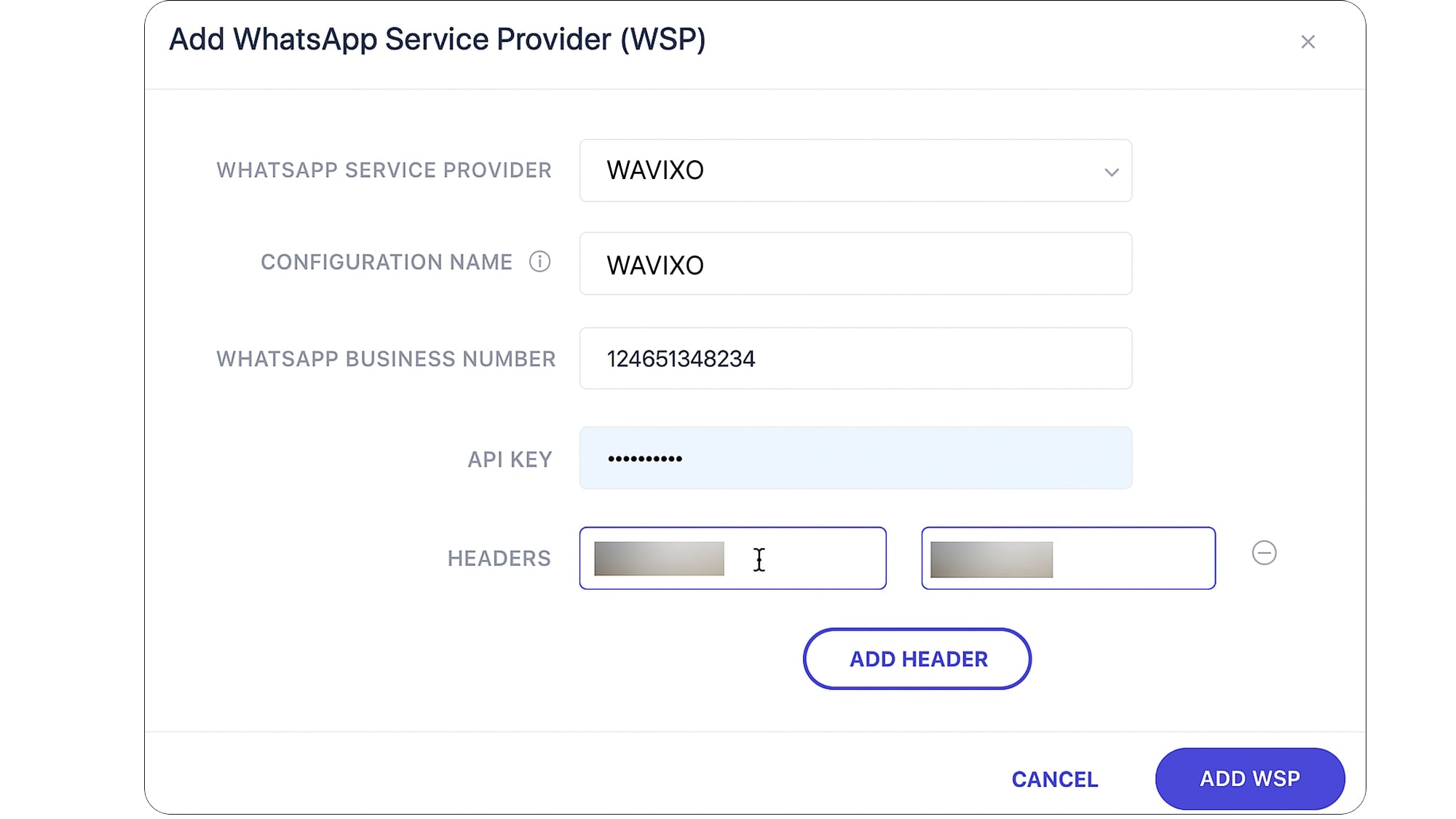
In doing so, you will be prompted by a configuration modal. Select WAvixo from the first dropdown, WhatsApp Service Provider.
#2 Configuration Name
In the Configuration name, add "WAvixo"
Adding a name enables you to identify the appropriate WSP for a campaign while creating it.
This comes in handy, especially when you have multiple accounts with the same WSP.
#3 Add WhatsApp Business Number
Kindly specify the verified phone number you'll use to send all your WhatsApp campaigns in this field.
Here, you need to add your existing WhatsApp Business API number connected with WAvixo.
#4 Regenerate & copy WebEngage Key
To move forward with the integration, you'll need the WebEngage Key from WAvixo Dashboard.
Go to WAvixo 👉 Integrations 👉 WebEngage 👉 Regenerate Key 👉 Copy Key
#5 Paste the Key into the WebEngage Dashboard
Come back to the WebEngage Dashboard & paste the WebEngage key under API Key.
After adding the API key, tap on Add WSP to add WAvixo as your WhatsApp Service Provider.
#6 Paste WebEngage API Key and Server Webhook Point in WAvixo Dashboard
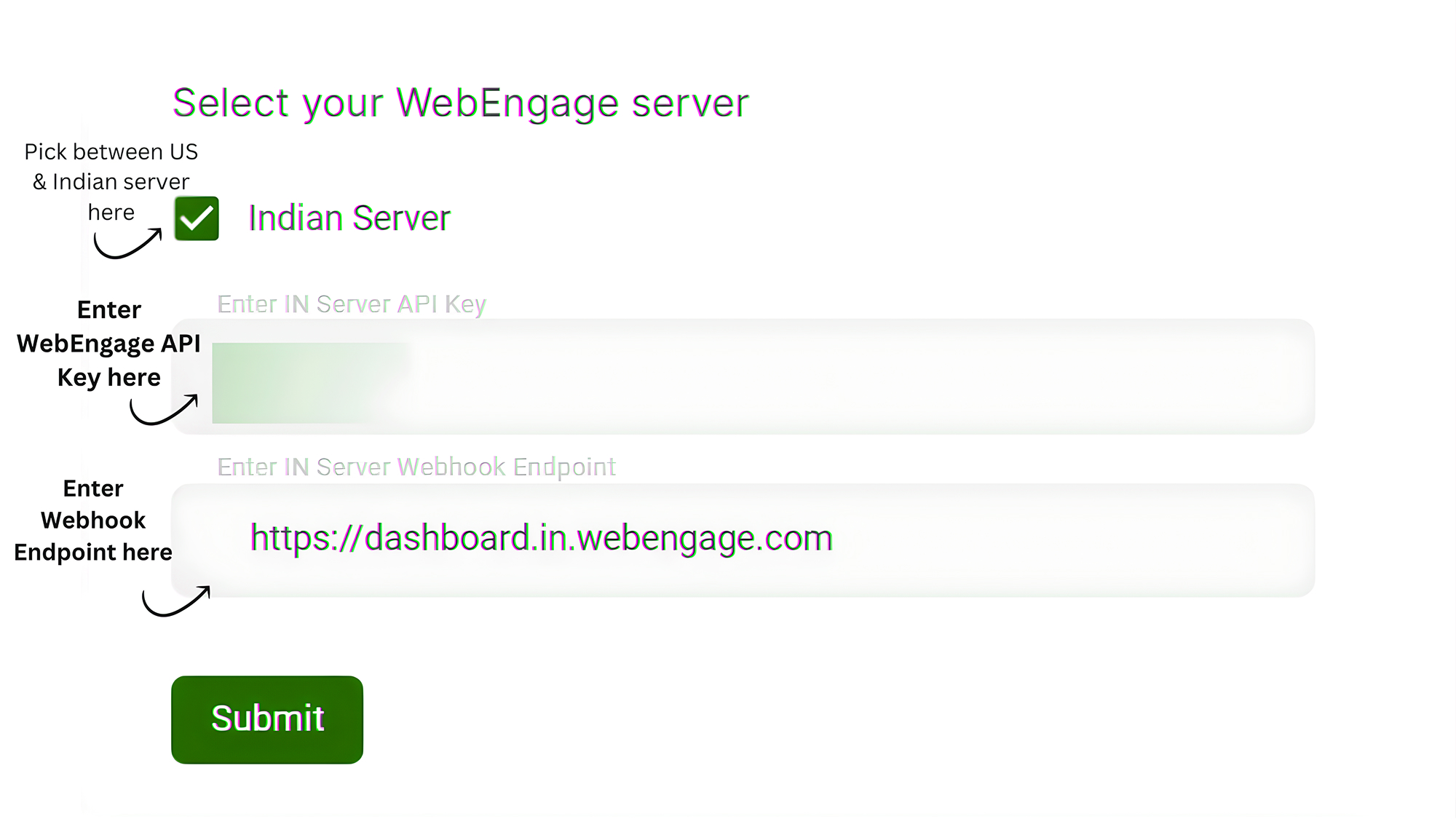
Now come back to WAvixo Dashboard, under integrations choose WebEngage and paste the WebEngage API key and Server Webhook Point.
Note: If you are not sure which server your account is on, kindly check the URL of your dashboard:
For the US server, the URL is https://dashboard.webengage.com
For the Indian server, the URL is https://dashboard.in.webengage.com
For the Saudi Arabia server, the URL is https://dashboard.ksa.webengage.
Whether you choose the Indian server or the US server, the WebEngage API key will remain the same.
As we mentioned at the beginning of the doc, you will get the WebEngage API Key from WebEngage support team.
After adding the key and server endpoint, click Submit.
You've successfully connected WebEngage with WAvixo.
Magic Done! 🎉
You successfully connected WebEngage with WAvixo. You're now ready to Shoot WhatsApp Campaigns directly from WebEngage Dashboard!
Drive 3x Revenue with WAvixo
Get Started for FREE. No Credit Card needed.
⚡️Powered by Official WhatsApp Business API
