

Meta Tech Provider

Help Center - Articles Detail

How to Add Individual Contacts Directly in the Wavixo App (Without Importing a CSV File)
When a new lead comes in — through a call, WhatsApp, or a walk-in — you need to log them immediately, not wait to compile a CSV. Wavixo lets you add contacts one at a time in just a few clicks, keeping your database current without the overhead of a bulk import.
Steps to Add a Contact
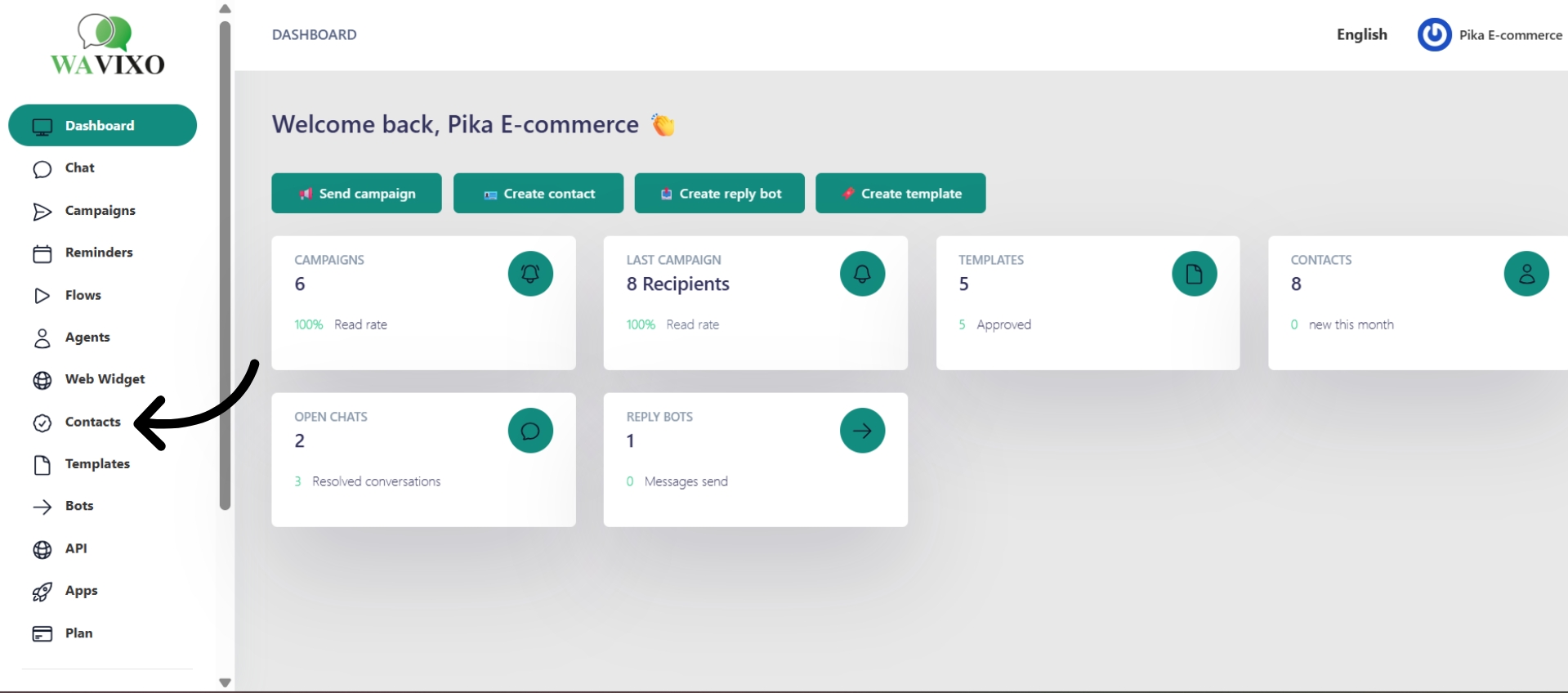
Step 1: Open the Contact List
From your Wavixo dashboard, click Contact in the left navigation bar, then select Contact List.
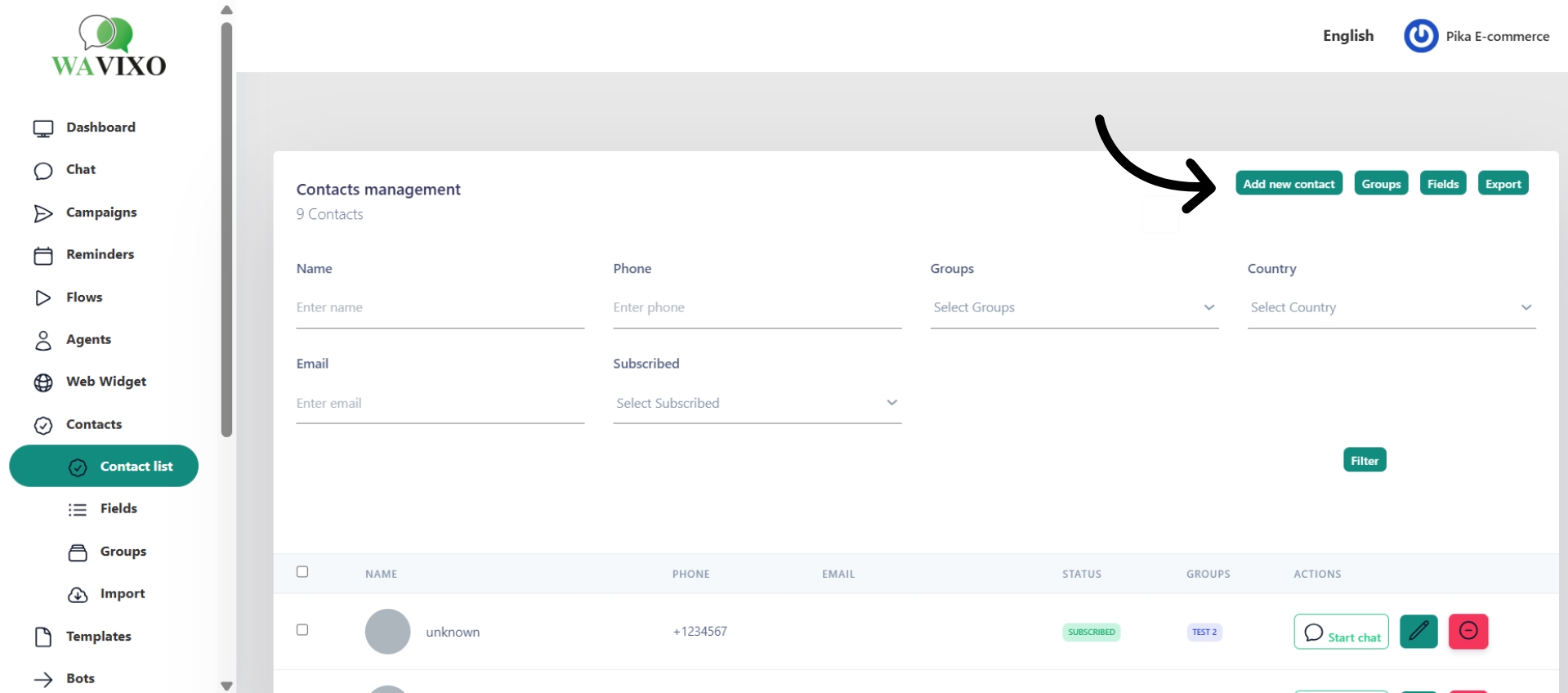
Step 2: Click "Add New Contact"
This opens a form where you can manually enter contact details without importing any external file.
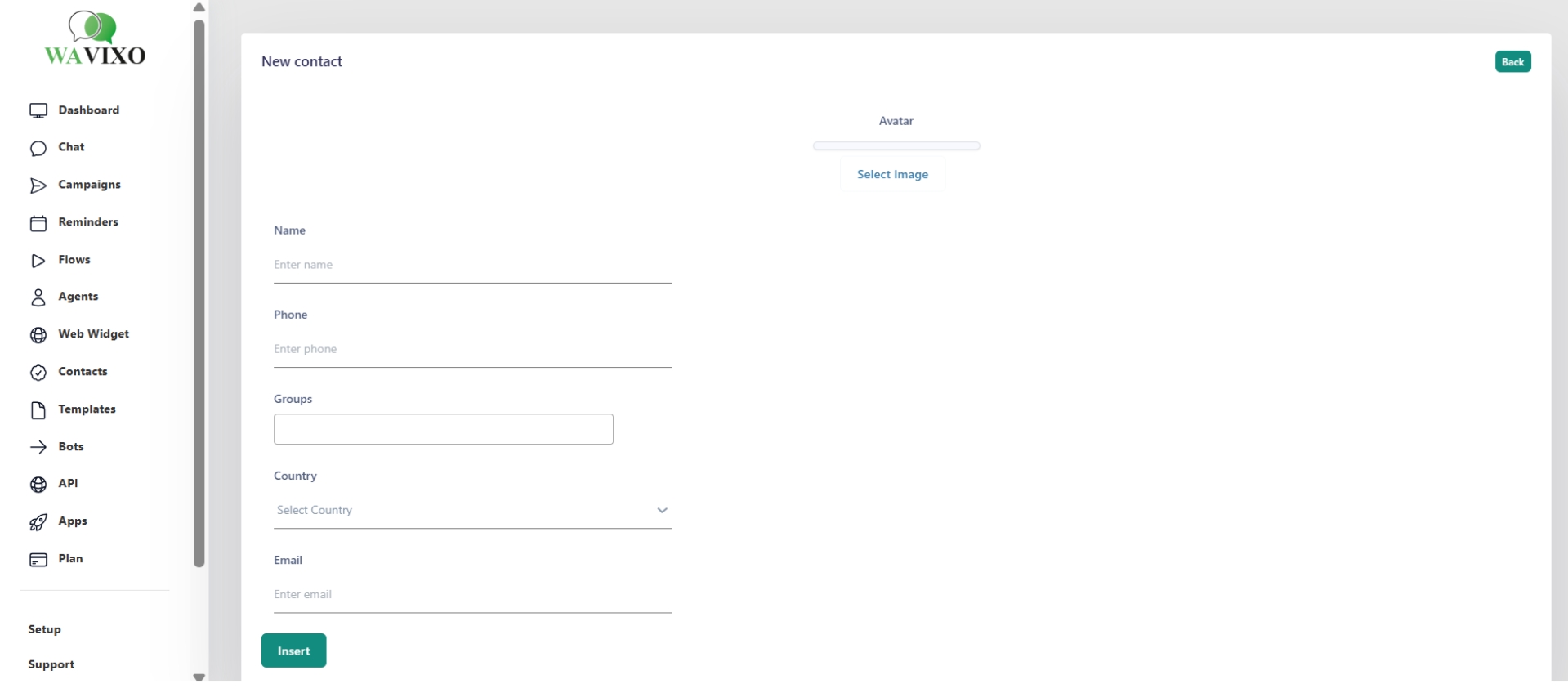
Step 3: Fill in the Contact Details
Enter the contact's name, phone number, email address, and any additional information. The more complete the entry, the easier it will be for your team to follow up.
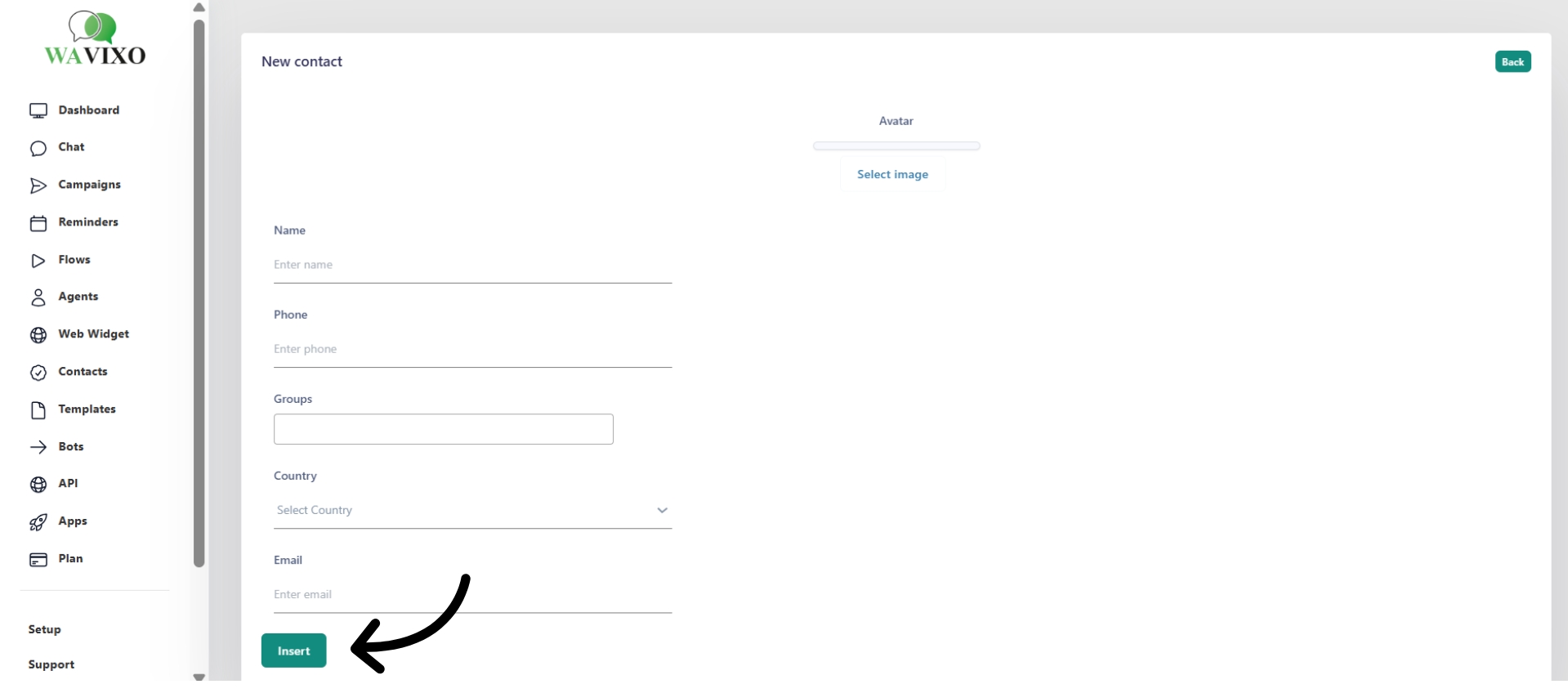
Step 4: Click "Insert"
Review the details and click Insert to save. The contact will appear in your Contact List immediately, ready for conversations, notes, and journey management.
A Few Tips
Check for duplicates before adding — search the existing list first to avoid clutter.
Use CSV import when you need to upload large batches of contacts or migrate data from another system. For day-to-day leads, manual entry is faster.
Keep details updated. If a contact's information changes, edit it directly from their profile so your records stay accurate.
Make your Productivity
more efficient. From this time.
Get the Demo and unplash your productivity. Feel Free to get the
latest Technology. Have a good time
