

Meta Tech Provider

Help Center - Articles Detail

How to Add Quick Replies
to a WhatsApp Template Message in Wavixo
Learn how to attach Quick Reply buttons
to your WhatsApp templates for faster responses and higher engagement.
What Are Quick Reply Buttons?
Quick Replies are simple, tappable buttons placed below a WhatsApp message.
When users click any of these buttons, a predefined reply is instantly sent—without them needing to type anything.
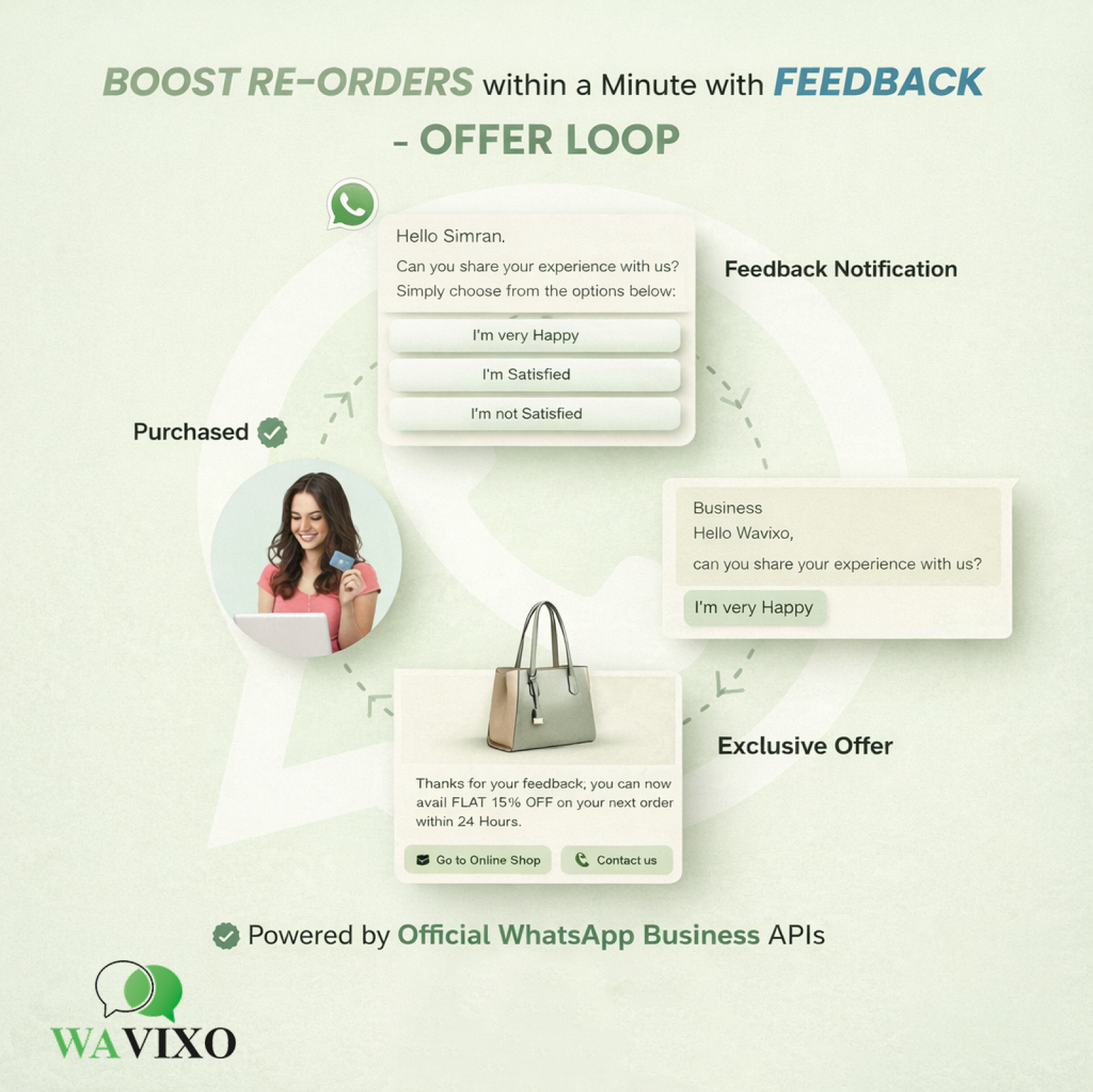
Example Use Case (shown on page 2 image):
For customer feedback, your Quick Replies might be:
“I’m very Happy”
“I’m Satisfied”
“I’m not Happy”
You can add up to 3 Quick Reply buttons in a single WhatsApp Template Message.
The image on page 2 also demonstrates how Quick Replies can boost re-orders for ecommerce stores by enabling faster feedback and follow-up offers.
How to Add Quick Replies in a Wavixo Template Message
1. Open the Template Message Section & Click “New”
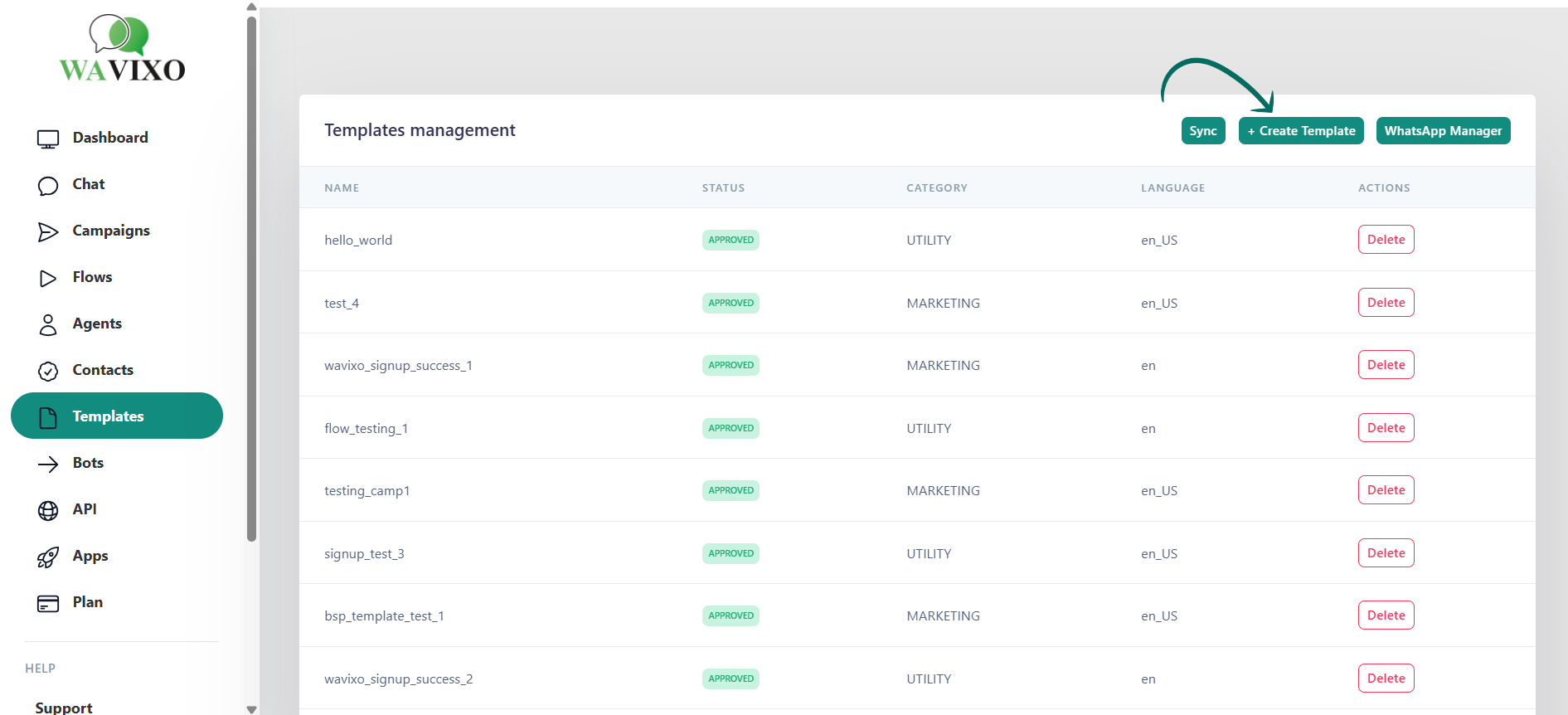
Go to:
Manage → Template Message → New
You can also begin with one of Wavixo’s 100+ pre-approved templates available under the Explore section.
2. Create Your Template Message & Open “Interactive Actions”
Fill in the required template fields as usual:
Template Category
Template Type
Language
Message Content
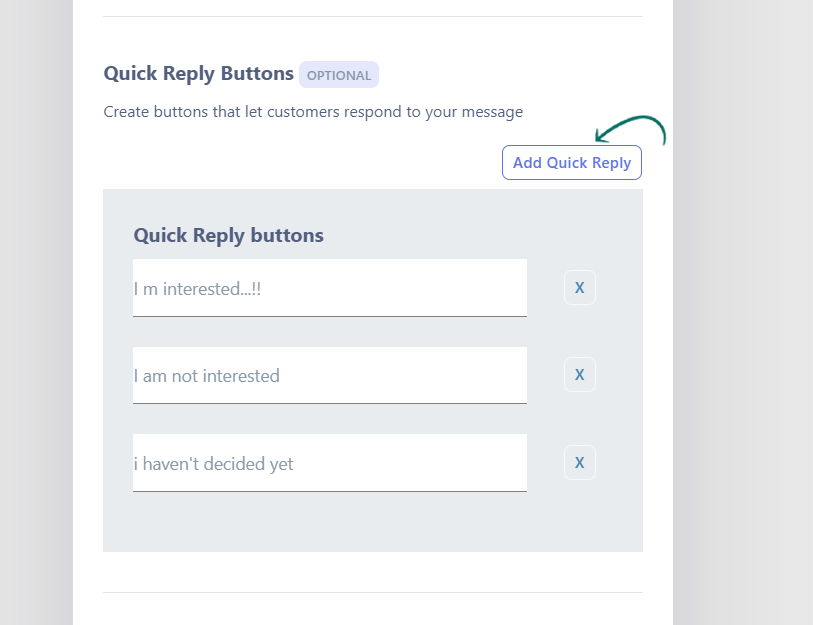
To add Quick Replies, scroll to the Interactive Actions section.
There you will see three options:
None
Call to Actions
Quick Replies (select this)
3. Add Your Quick Reply Buttons
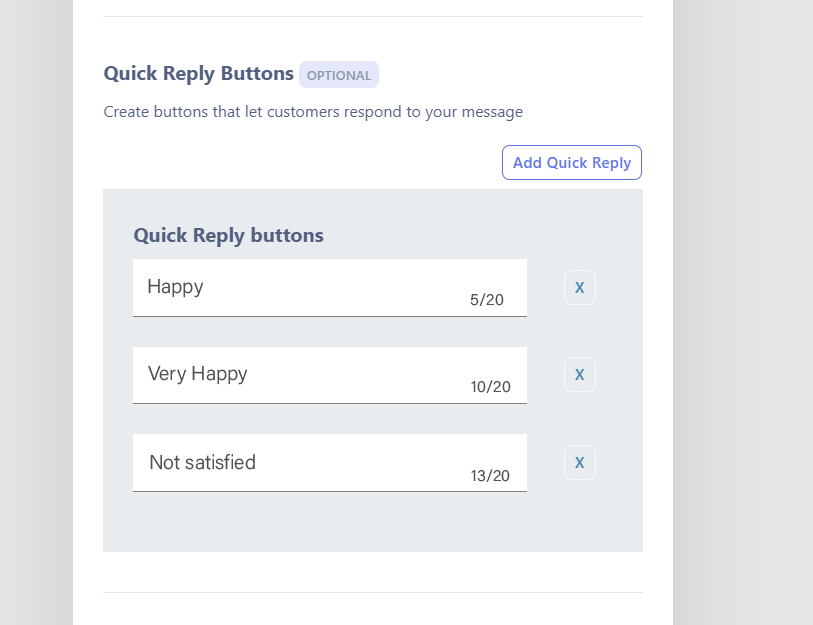
In this example (shown on page 4 image), the template is a Feedback Message, and 3 Quick Replies are added:
1. I am very Happy
2. I am Satisfied
3. I am not Happy
Rules for Quick Replies:
Maximum 3 buttons
Maximum 20 characters per button
No emojis allowed in Quick Replies
Keep them crisp and clearly worded
Once you finish adding all Quick Replies and proofreading your message, you’re ready to submit.
4. Click “Submit” to Send the Template for Approval
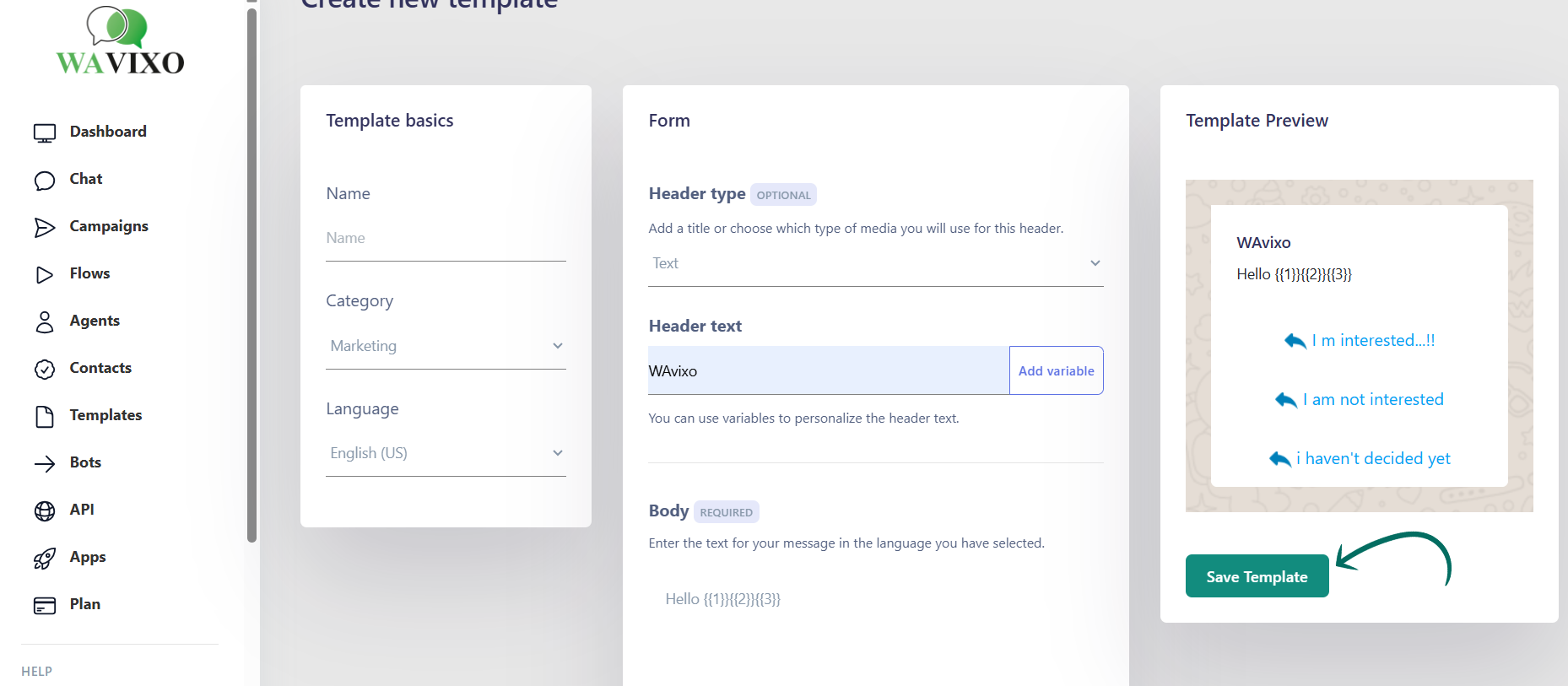
After finalizing your template:
Click the Submit button
WhatsApp typically takes 10 minutes to 24 hours to review and approve new templates
A notification appears stating that approval may take some time.
5. Click “Sync Status” to Refresh WhatsApp Approval Status
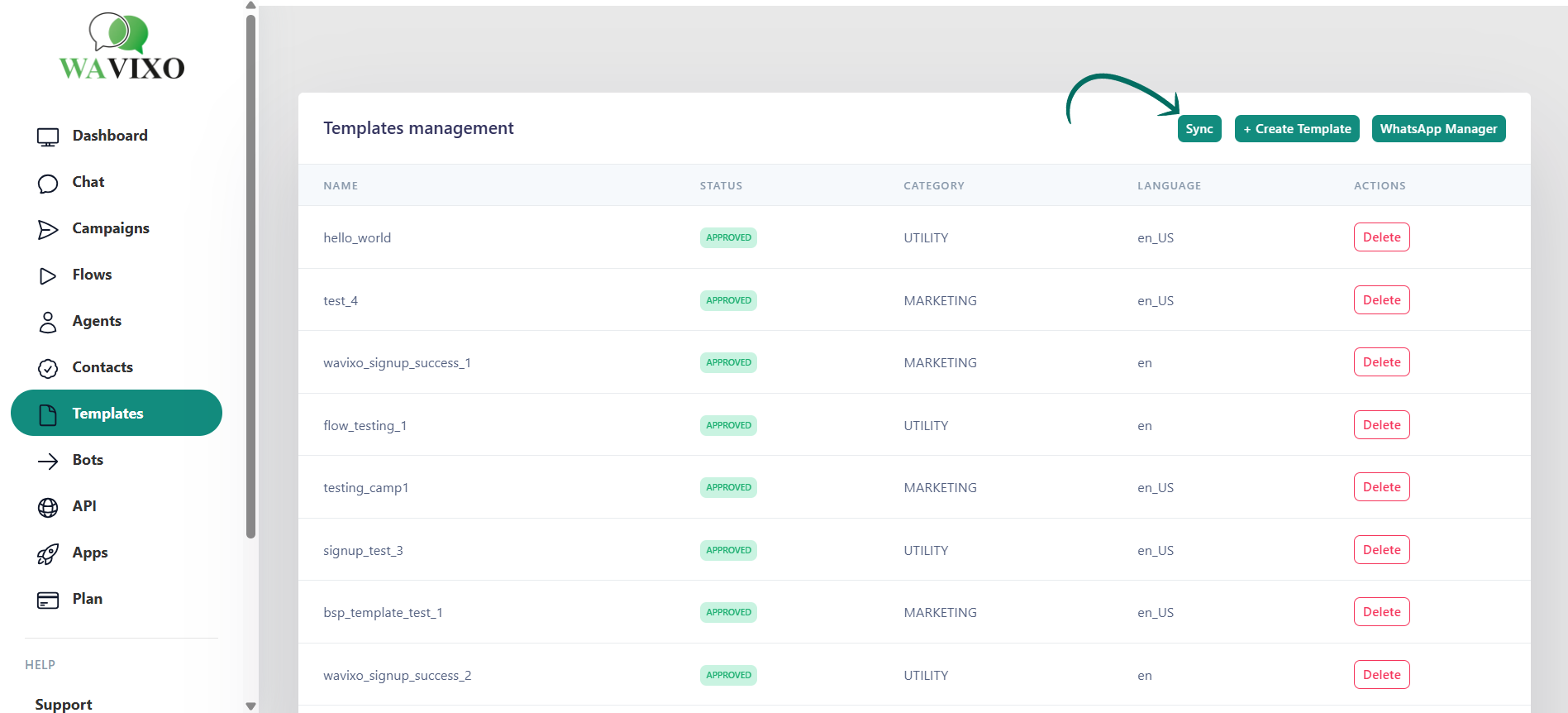
After submission, go to the Approved tab and click Sync Status to fetch the latest approval update directly from WhatsApp.
This will show whether your template is:
Approved
Pending
Action Required (meaning you need to edit and resubmit)
Related Articles
How to schedule WhatsApp Broadcasts in Wavixo
How to Opt-in & Opt-out users from Broadcasts
How to Apply for FREE WhatsApp Green Tick
How to Apply for WhatsApp Business API
WhatsApp Co-existence: Everything You Need to Know


Make your Productivity
more efficient. From this time.
Get the Demo and unplash your productivity. Feel Free to get the
latest Technology. Have a good time
