

Meta Tech Provider

Help Center - Articles Detail

How to Create and Automate
Authentication WhatsApp Template Messages (Using Wavixo)
A step-by-step guide to send OTPs and login verification codes on WhatsApp using Wavixo.
Overview
Want to authenticate users or send login/verification codes on WhatsApp?
With Wavixo, you can automate Authentication WhatsApp Template Messages such as OTPs and verification codes at a lower cost than SMS.
Authentication templates are:
Secure
Fast
User-friendly
Ideal for login verification, account access, and sensitive actions
This guide explains how to create authentication templates and automate them using API campaigns in Wavixo.
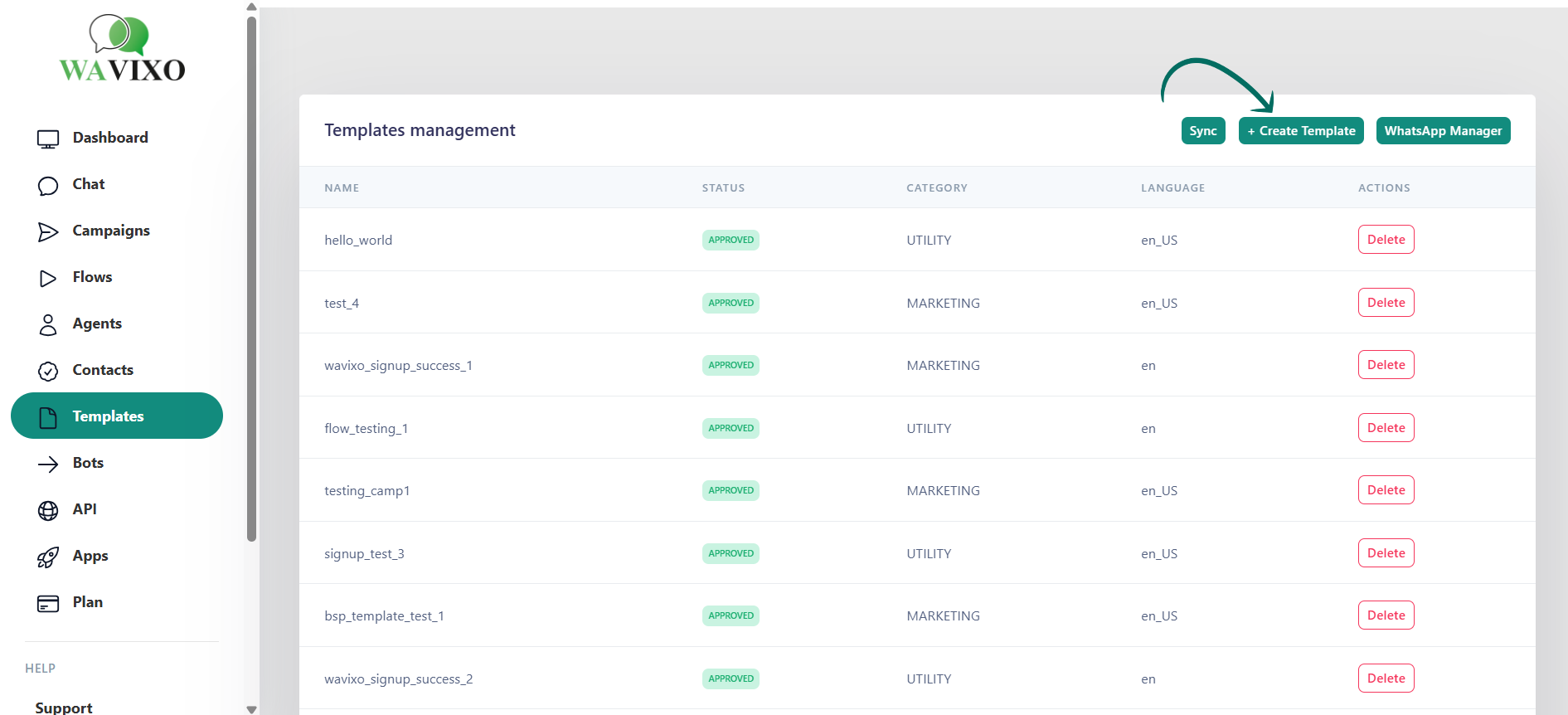
Step 1: Go to Template Messages
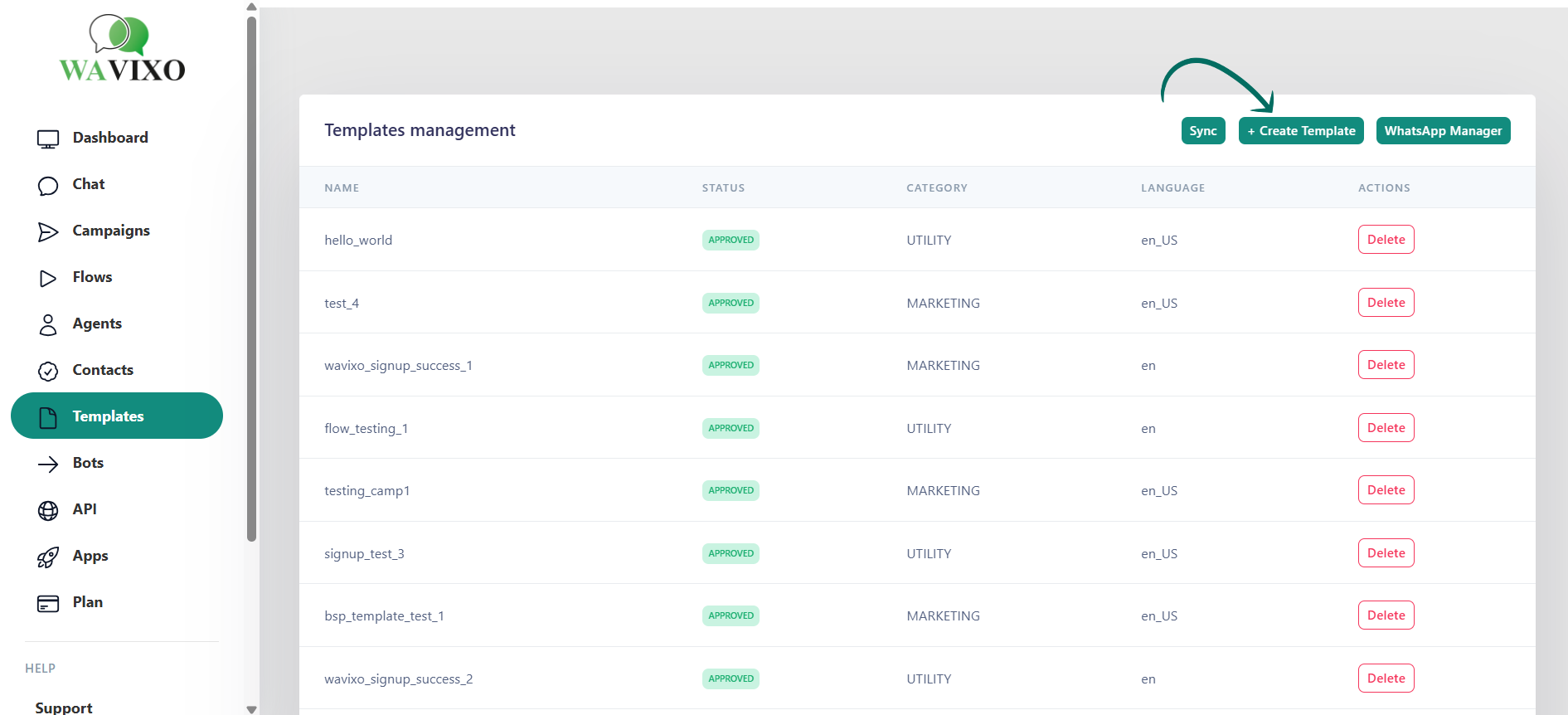
1. Log in to your Wavixo Dashboard
2. Navigate to Manage → Template Message
3. Click “+ New” to create a new template
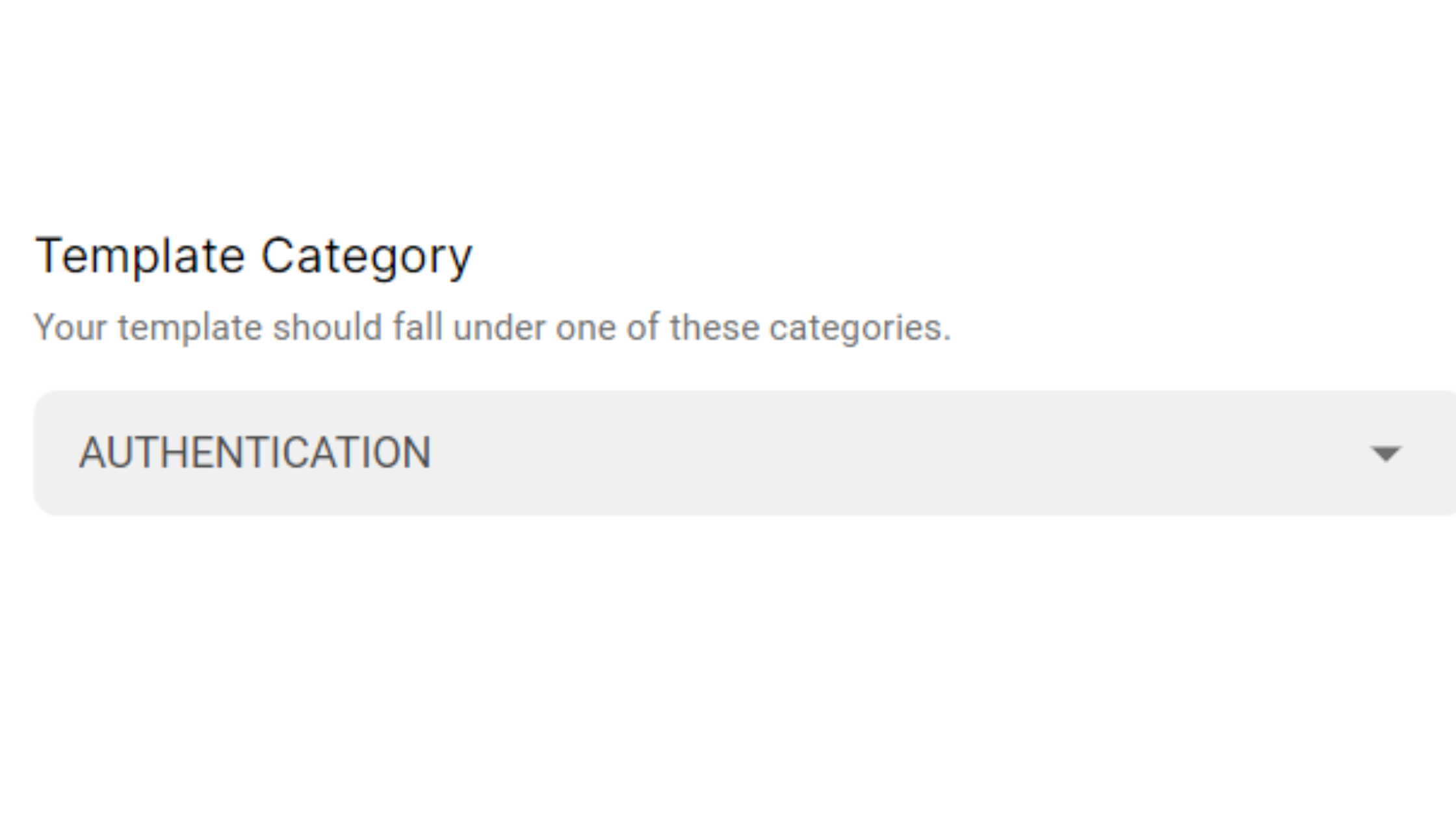
Step 2: Select Template Category
Choose Authentication as the template category.
WhatsApp Template Categories
Utility – Transaction confirmations & updates
Authentication – OTPs & login verification codes
Marketing – Promotional or engagement messages
Since OTPs fall under user verification, Authentication must be selected.
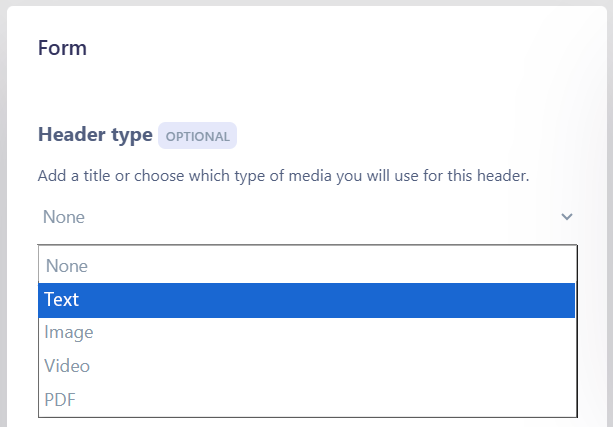
Step 3: Select Template Type
Under Template Type, choose Text.
Authentication templates are supported only as Text templates.
Step 4: Select Template Language
Choose one language from the available global languages
Each authentication template can be created in only one language
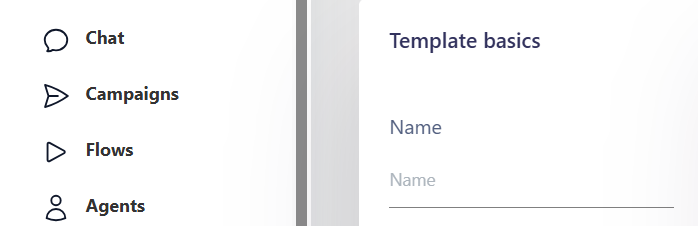
Step 5: Name Your Authentication Template
Template naming rules:
Lowercase letters only
Alphanumeric characters and underscores (_)
No spaces or special characters
Example:
otp_verification
Step 6: Add Sample Authentication Code
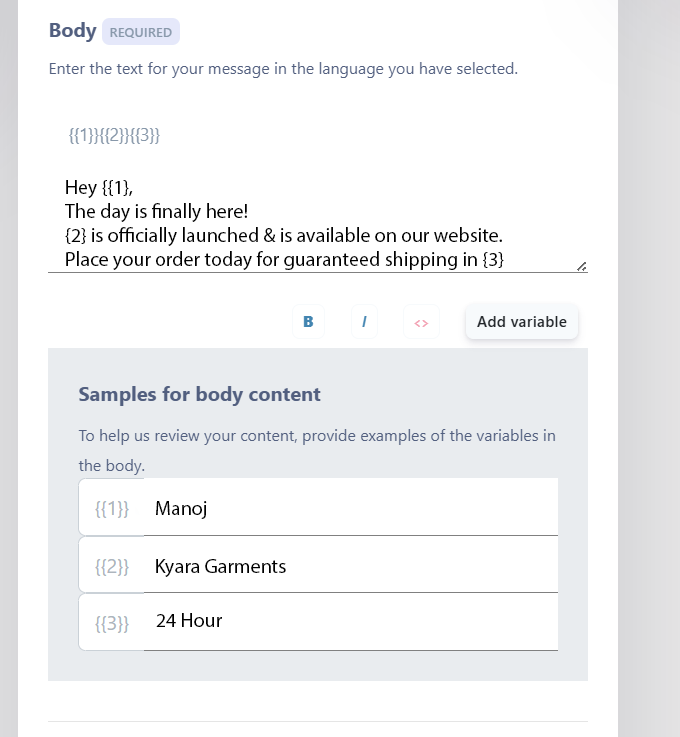
Add a sample OTP value
This is only for preview and approval
The actual OTP will be dynamically passed later
📌 This value will not be sent to real users.
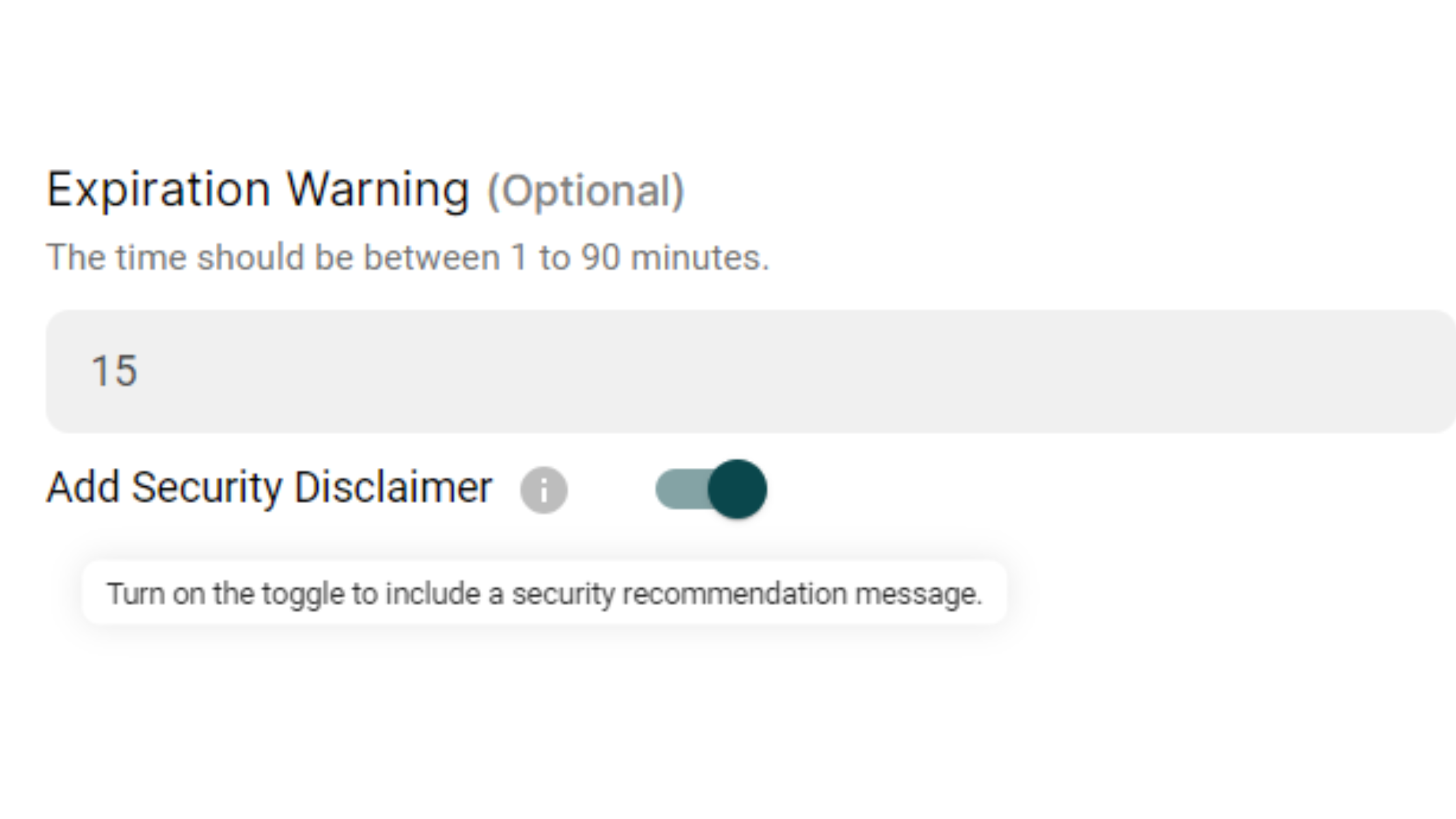
Step 7: Add OTP Expiration Warning (Optional but Recommended)
You can optionally:
Set OTP validity between 1–90 minutes
Add a security disclaimer reminding users not to share the code
This improves:
User trust
Security awareness
Overall experience
Important Note About Authentication Templates
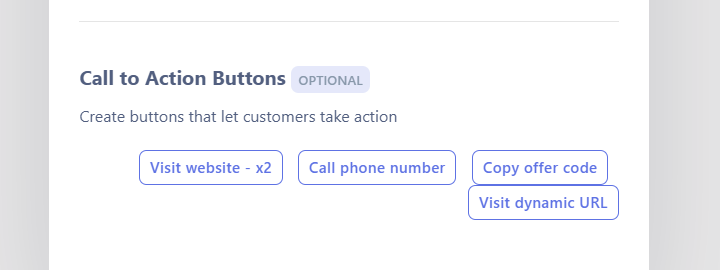
The message body is pre-configured by WhatsApp
You cannot edit the template text
Once submitted, you only need to set up automation
Step 8: Configure Interactive Action (Copy Code)
Under Interactive Actions:
Enter the same sample OTP value in “Copy Code”
This allows users to copy the OTP easily
Step 9: Submit the Template for Approval
Click Submit
Authentication templates are usually approved within:
15 seconds to 2 minutes
Maximum approval time: 24 hours
You can check the approval status using Sync Status in Template Messages.
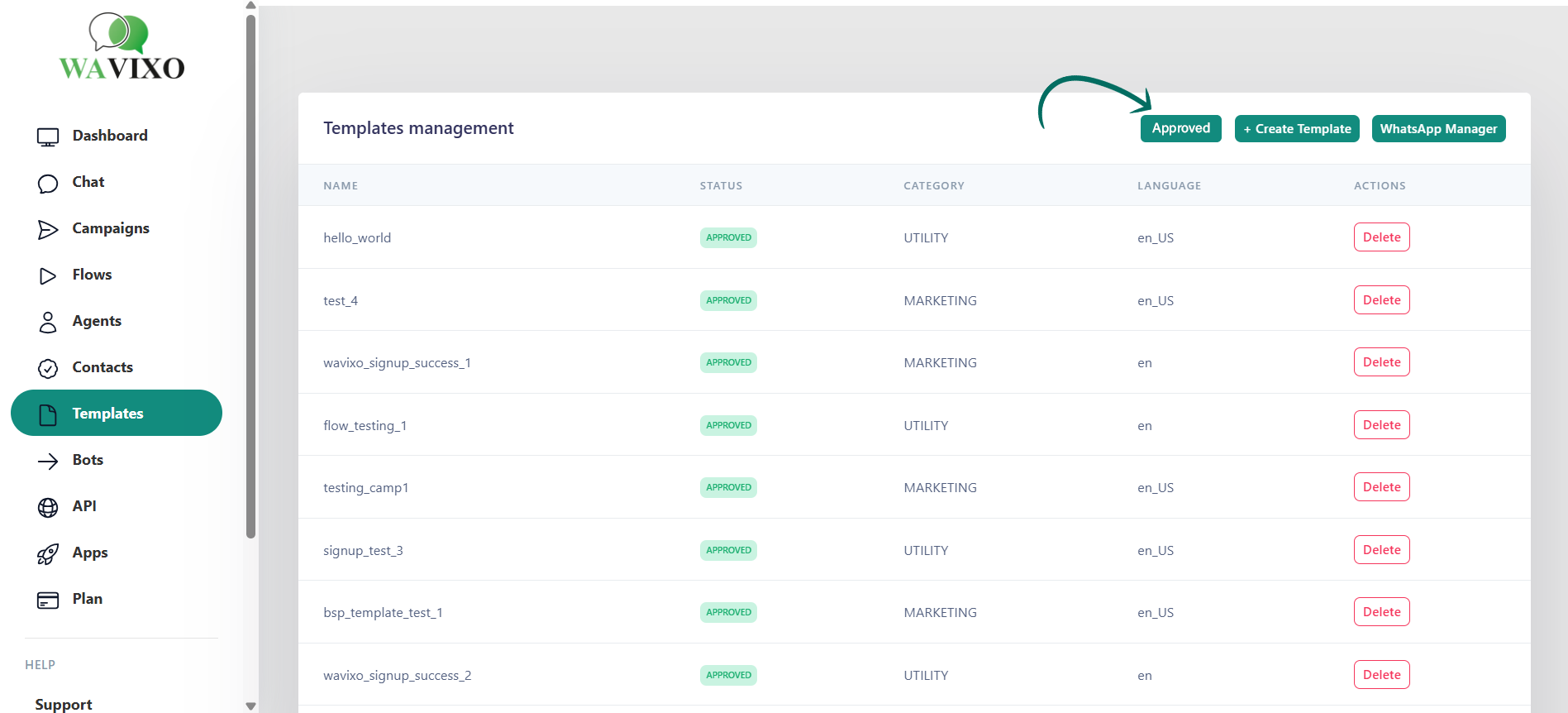
Automation Setup for Authentication Template Messages
Once your template is approved, follow the steps below to automate it.
Step 10: Create an API Campaign
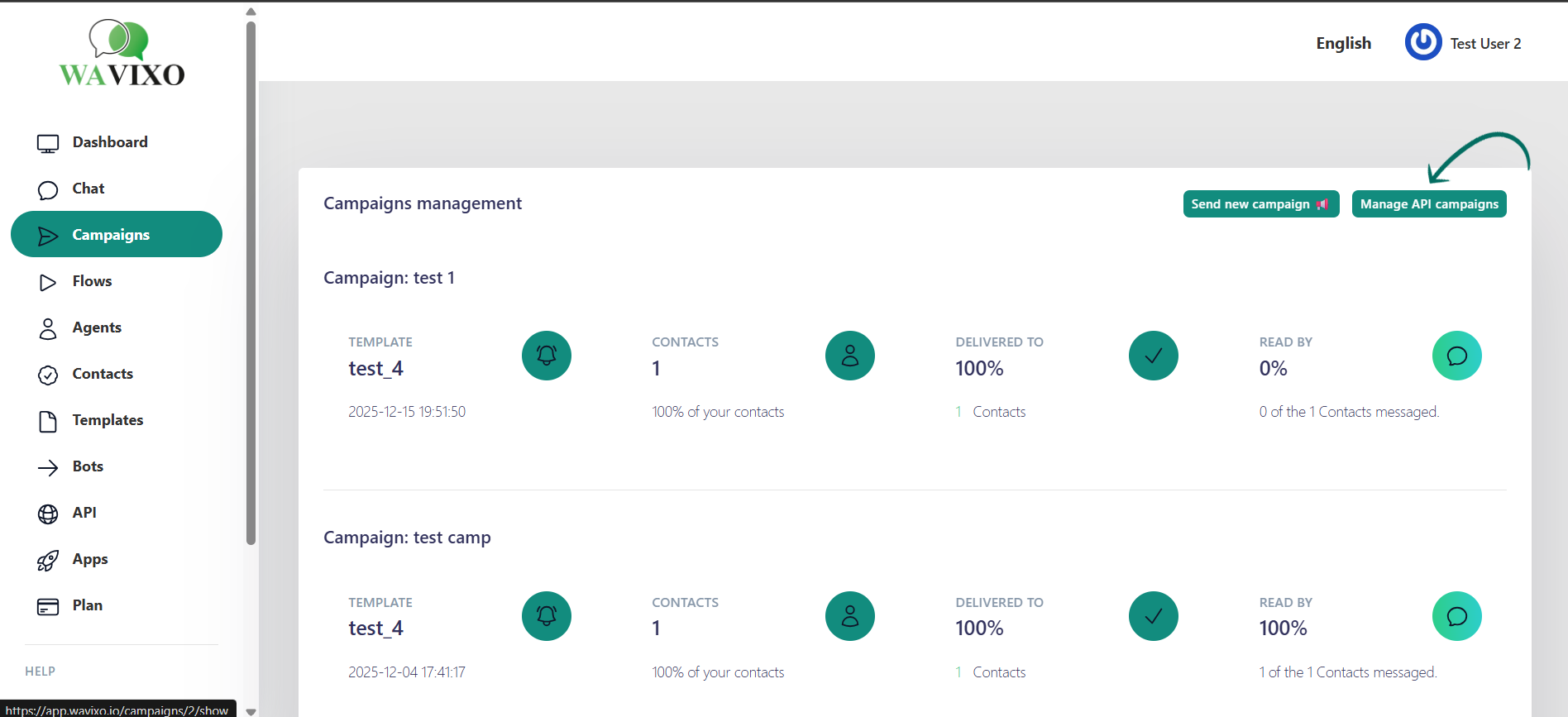
Go to Campaigns
Click + Launch
Select API Campaign
Step 11: Configure API Campaign
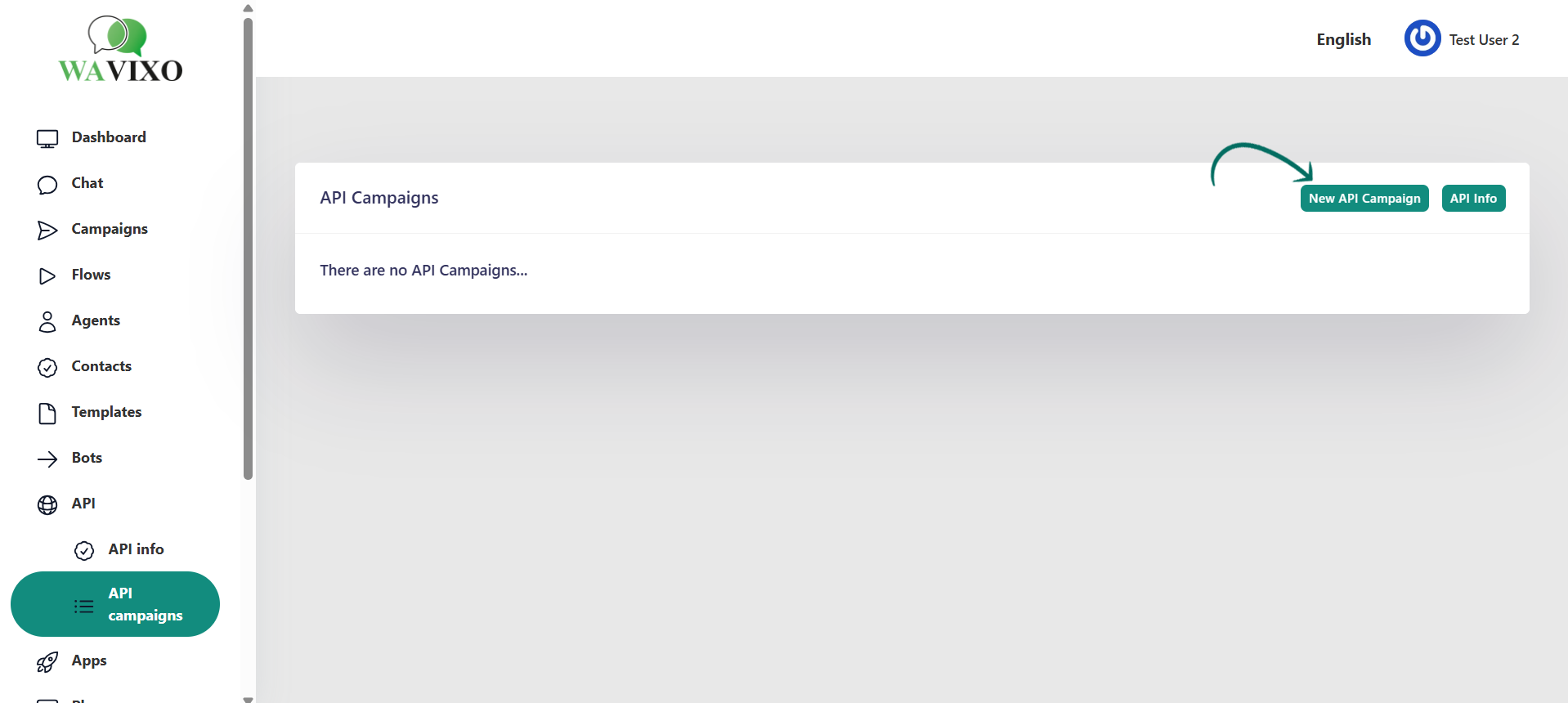
1. Add a Campaign Name
2. Select the approved Authentication Template
3. Set the campaign Live
📌 Make sure the template is approved before creating the campaign.
Step 12: Test the API Campaign
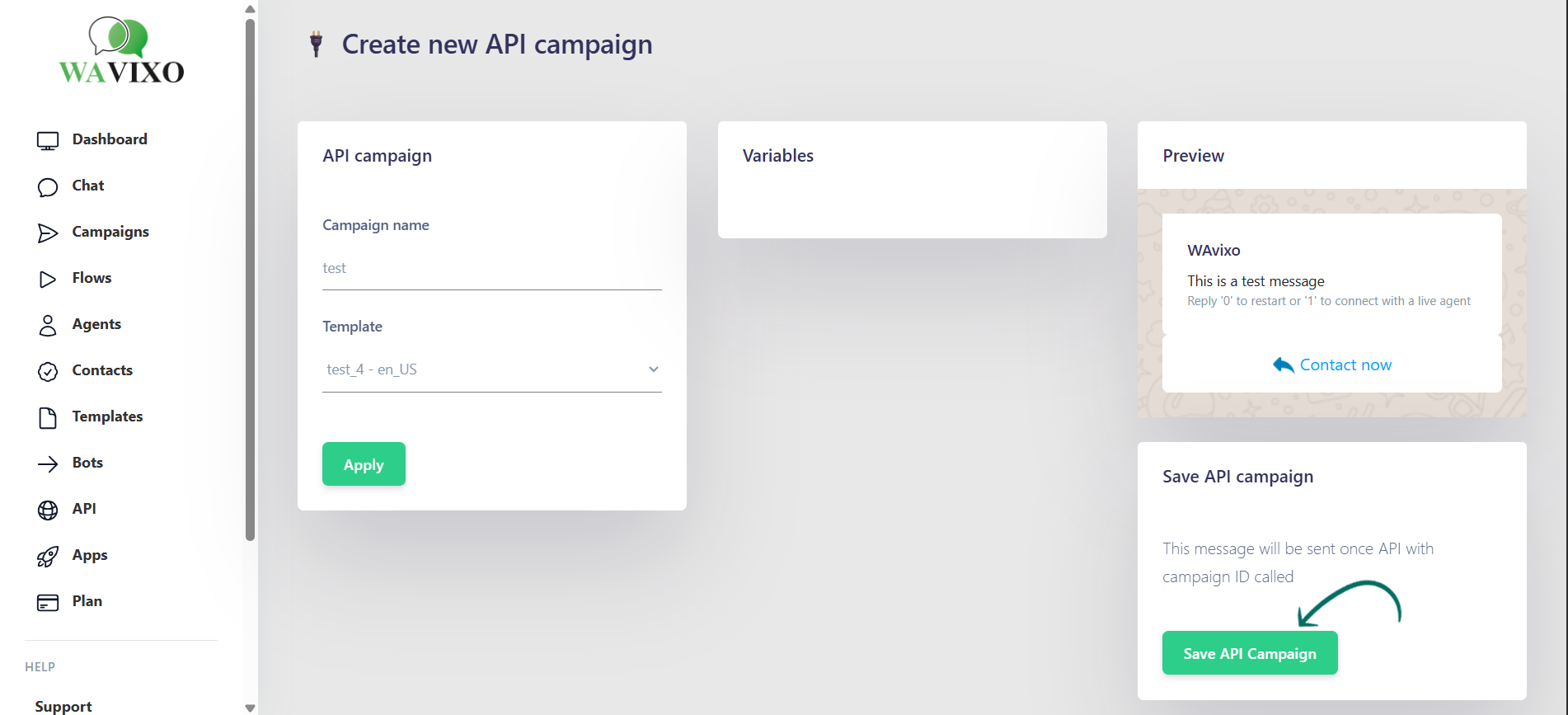
1. Open the campaign
2 .Click Test Campaign
3. A script (cURL) will appear
Step 13: Add Authentication Code in Script
In the test script:
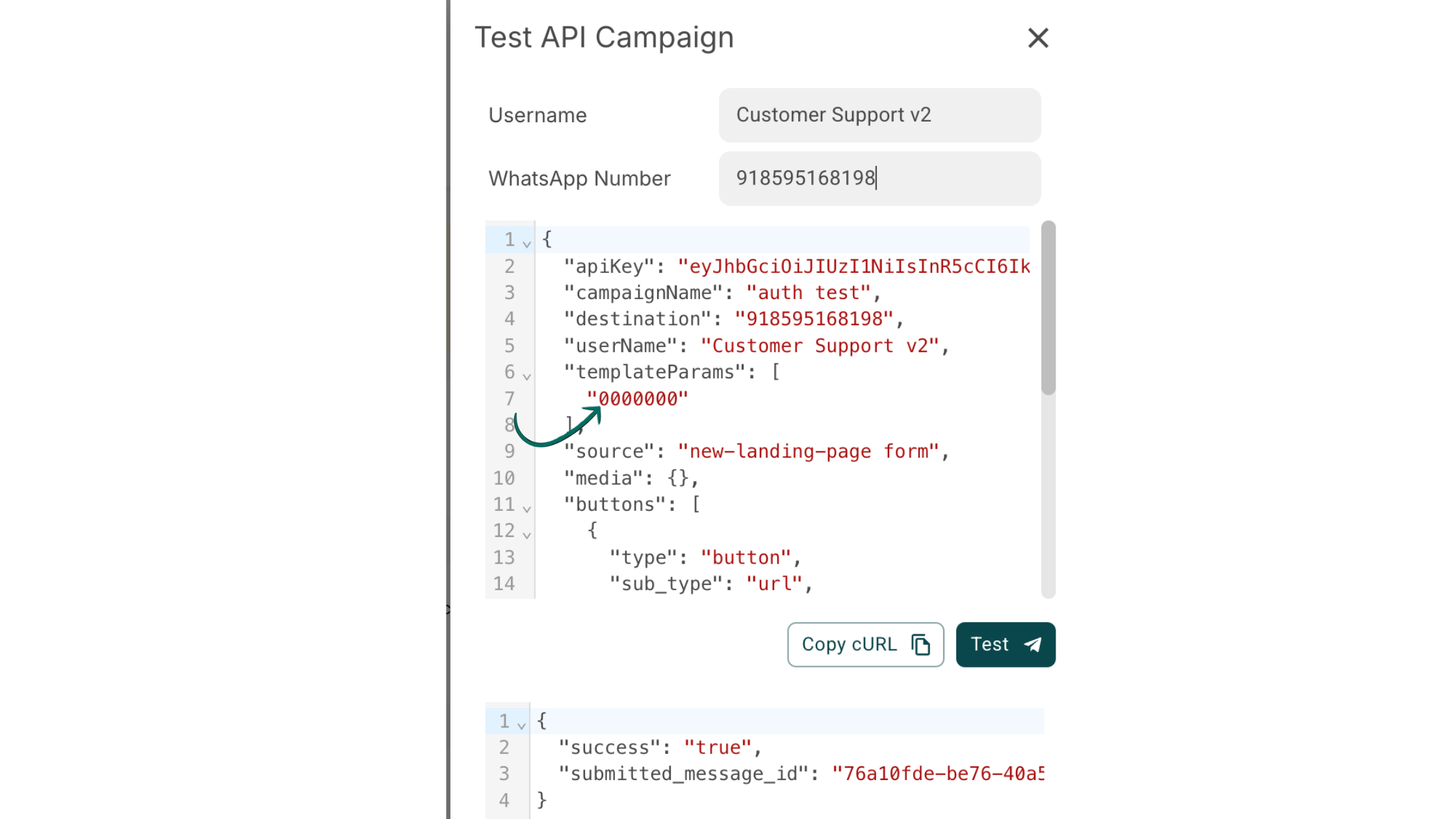
Search for templateParams
Add the authentication code inside double quotes
Example:
"templateParams": ["453120"]
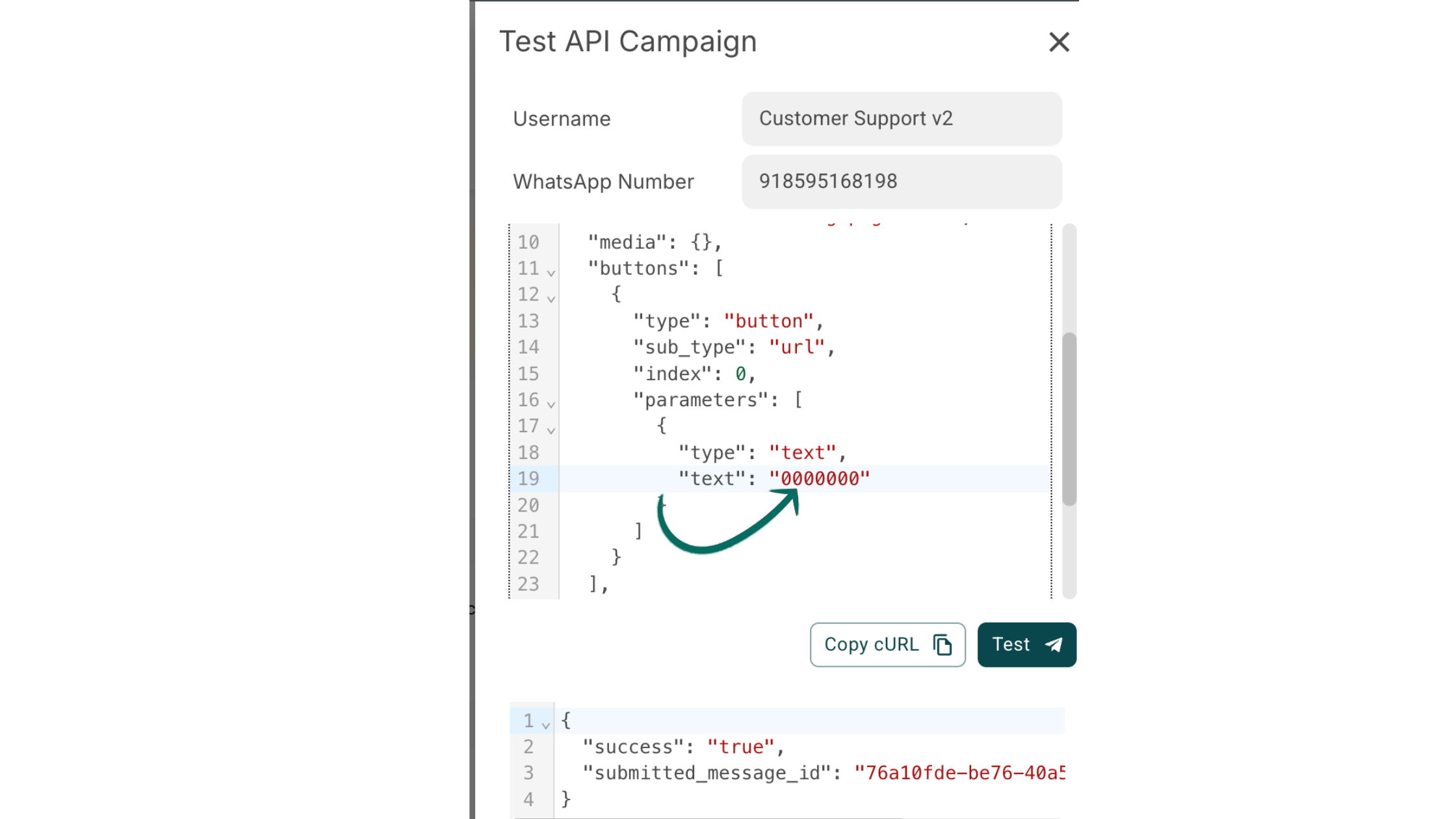
Step 14: Add Code in Button Parameters
Locate the button parameters section
1. Insert the same OTP value as a string in double quotes
2. This ensures both message body and copy button work correctly.
Step 15: Copy cURL
Click Copy cURL
Add it to your backend server
You can dynamically replace:
Username
Mobile number (destination)
OTP value
This ensures each user receives a unique OTP.
Step 16: Test with Your Own Number
Add your WhatsApp number in the test field
Trigger the API
Verify OTP delivery
Automation Is Now Live 🎉
Once the cURL is added to your backend:
Authentication OTPs will be sent automatically
Each request triggers a WhatsApp OTP instantly
Additional Notes
You can edit:
Username
Destination number
OTP dynamically via backend
For advanced automation, refer to Wavixo API Reference Docs
Related Articles
WhatsApp Broadcasting Rules
How to Opt-in and Opt-out Users from Your WhatsApp Broadcasts in Wavixo
WhatsApp Co-existence: Everything You Need to Know
How to Create WhatsApp Template Messages in Wavixo


Make your Productivity
more efficient. From this time.
Get the Demo and unplash your productivity. Feel Free to get the
latest Technology. Have a good time
