

Meta Tech Provider

Help Center - Articles Detail

How to Create WhatsApp
Template Messages in Wavixo
A complete guide to creating WhatsApp Template Messages and getting them approved quickly & correctly.
WhatsApp Template Messages are essential when you need to contact users outside the 24-hour messaging window.
This guide walks you step-by-step through:
How to create a new WhatsApp template
How to format it correctly
WhatsApp’s approval rules
Why templates get rejected
Best practices for guaranteed approval
How to Submit a New WhatsApp Template Message in Wavixo
1. Open the Template Message Section in Wavixo
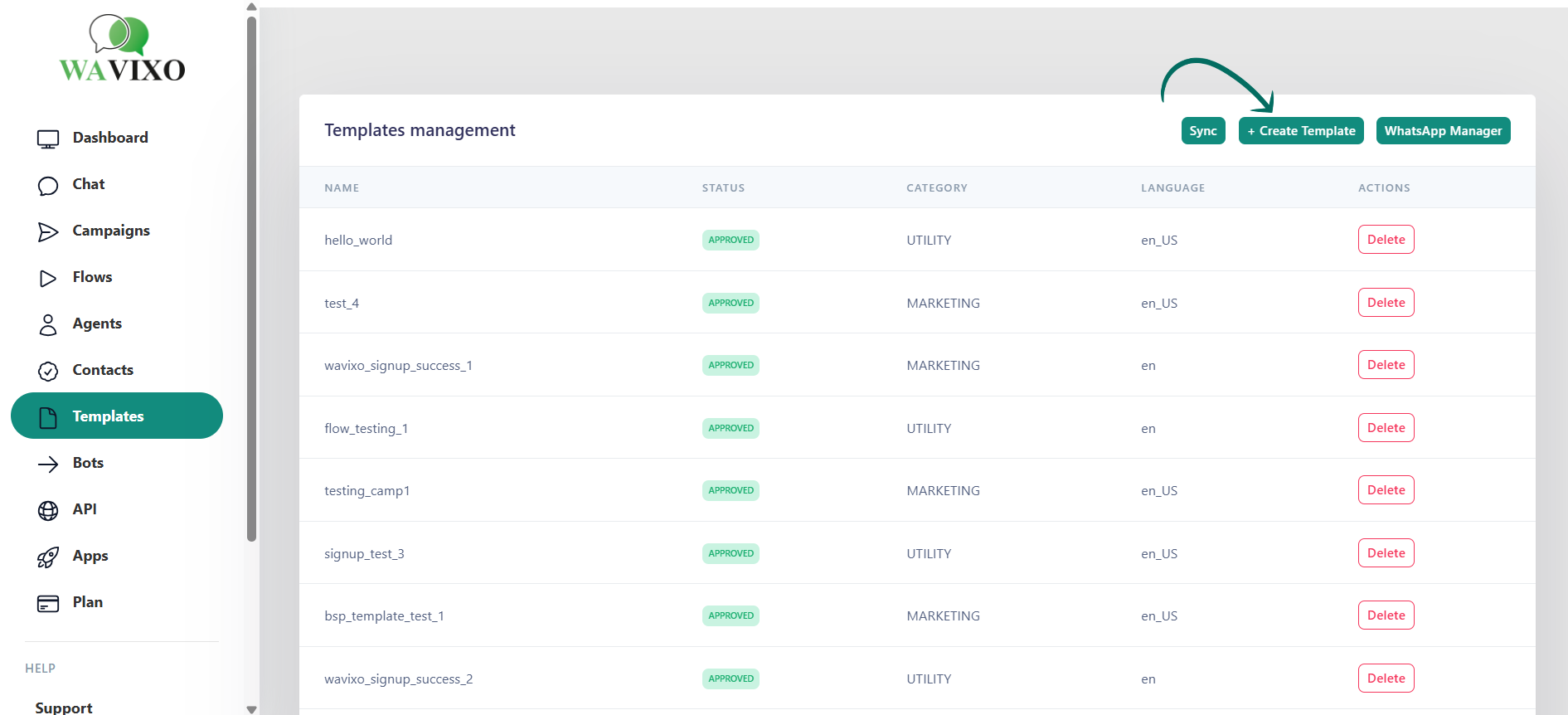 Go to:
Manage → Template Message → + New (top right corner)
You can also choose a pre-approved template from the Wavixo Template Library and submit it with your changes.
Once submitted:
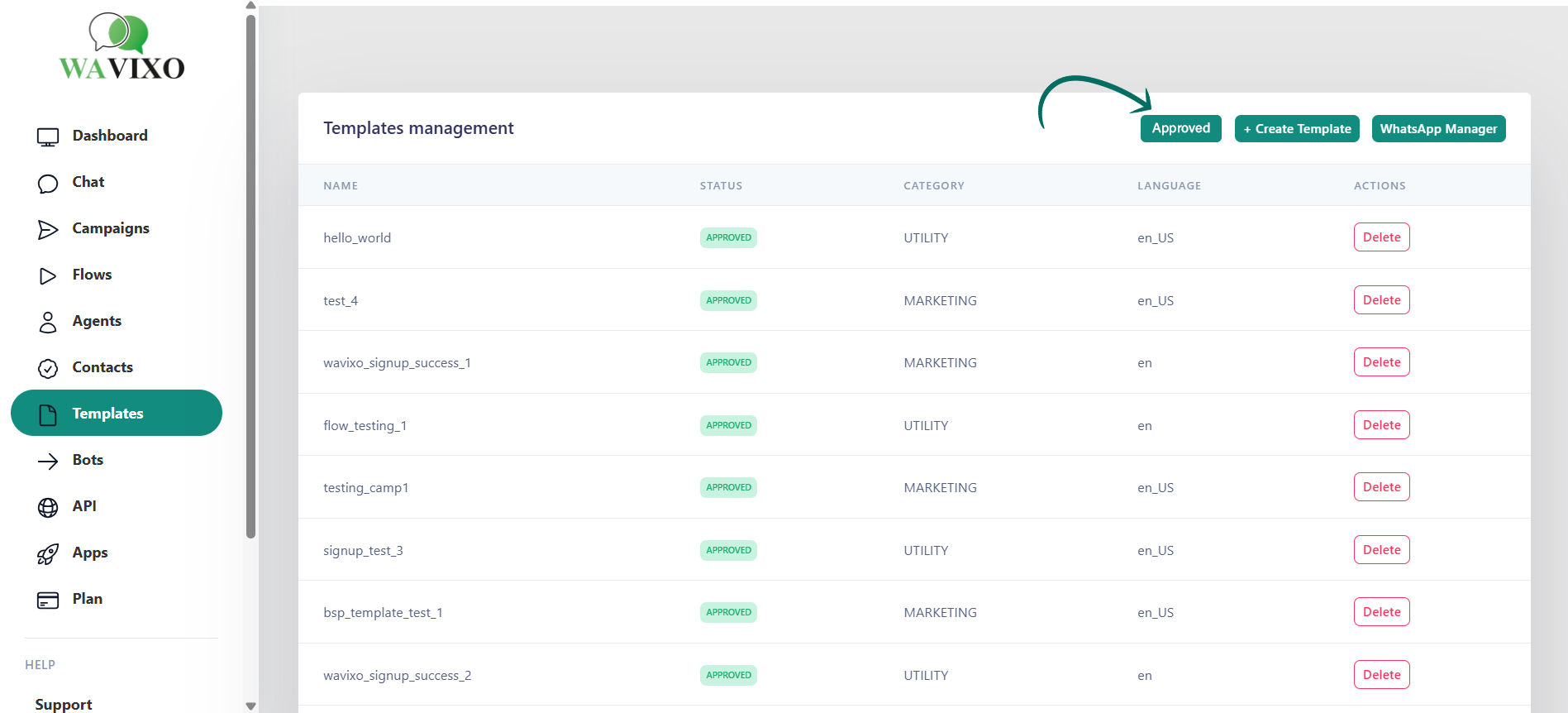
Template status becomes PENDING
If it follows WhatsApp policies → APPROVED
If it violates rules → REJECTED
2. Customize the Template Message
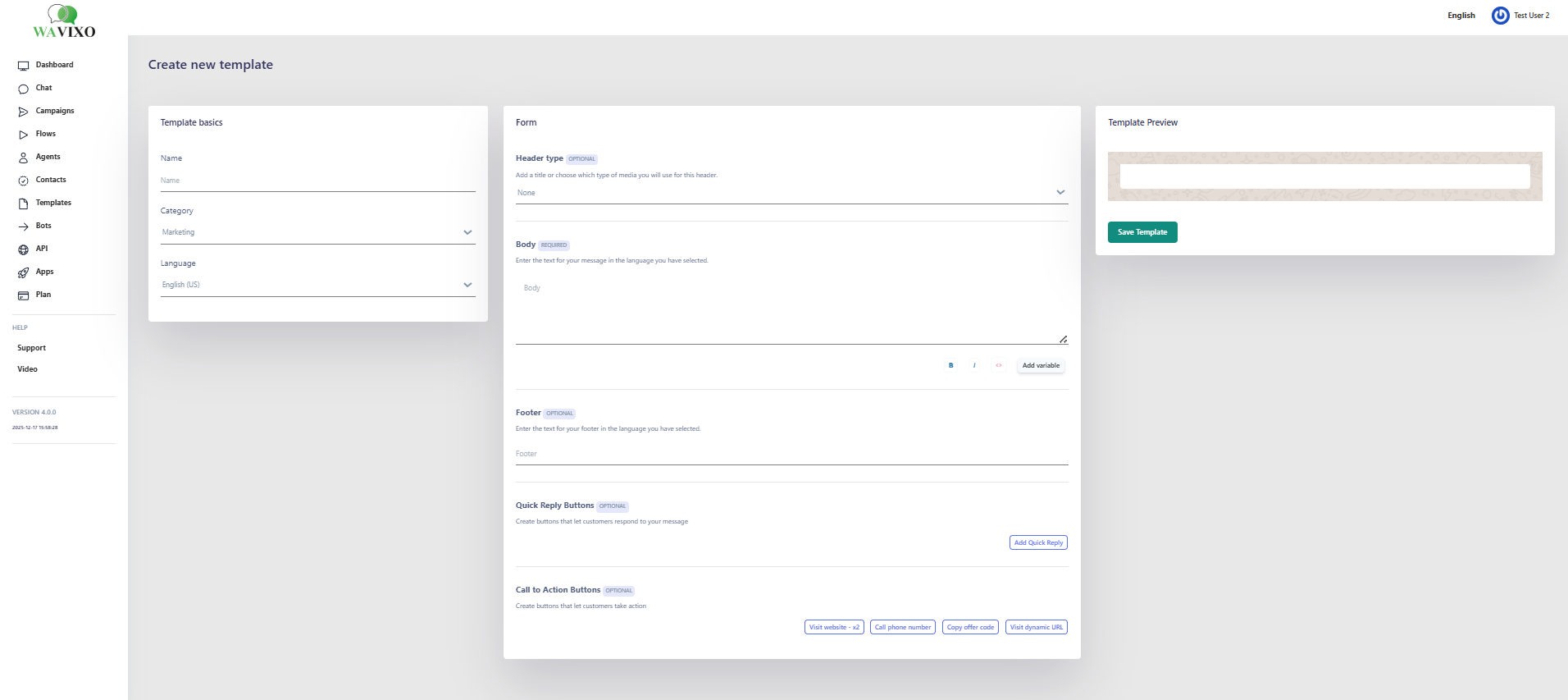 The template creation page (shown on page 3 image) includes multiple fields you must fill out correctly.
1️⃣ Template Category
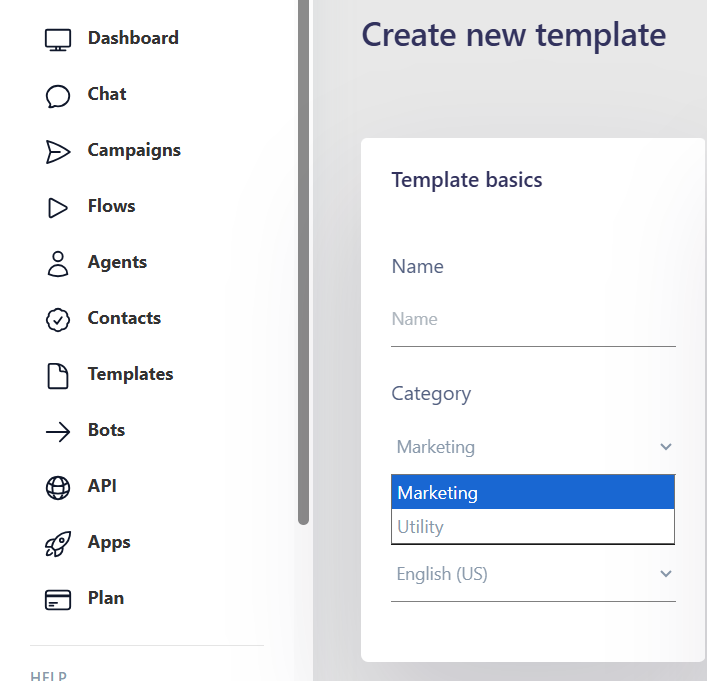
WhatsApp now classifies templates into:
Utility
Used for transactional or post-purchase updates such as order confirmations, cancellations, subscription alerts, etc.
Authentication
Used for OTPs, login codes, and verification flows.
Marketing
Covers all promotional, offer-related, product-based or non-transactional messages.
2️⃣ Template Type
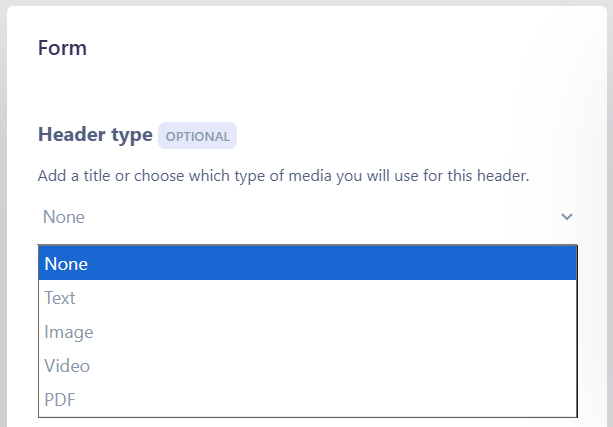 Choose one of the supported template types:
TEXT
IMAGE
VIDEO
FILE
⚠️ Important Rules:
Media templates must include text—you cannot send media alone.
A sample media file is required only for the approval process.
WhatsApp approves or rejects the template based primarily on text content, not media.
3️⃣ Template Language
Choose the language for your template.
Each template supports only one language.
4️⃣ Template Name
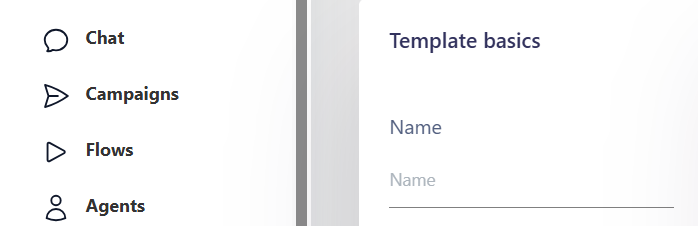 Formatting rules:
Must be lowercase
Use underscores instead of spaces
Only alphanumeric characters + underscores allowed
No special characters, spaces, or caps
Example:
account_update
otp_verification
promotional_offer_message
5️⃣ Template Format (Message Content)
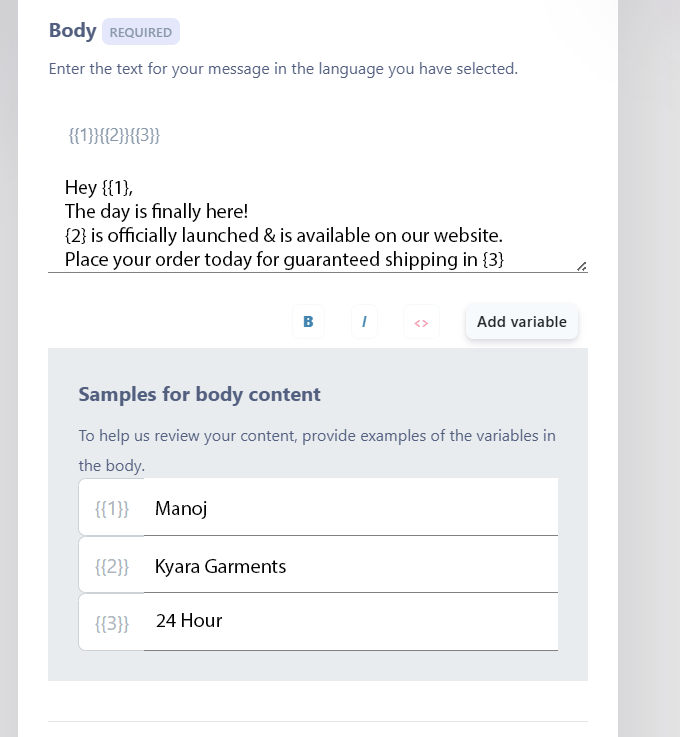
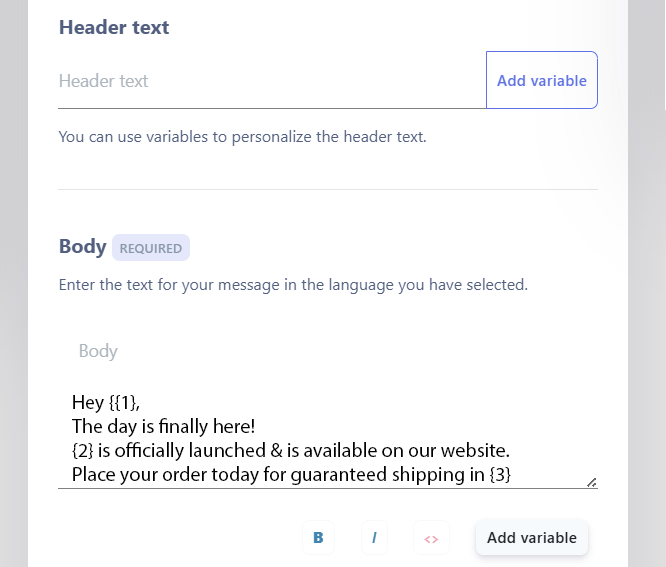 This is the actual message you want approved by WhatsApp.
You may include dynamic values such as:
{{1}} → Name
{{2}} → OTP
{{3}} → Order ID
{{4}} → Payment link
and so on …
Rules for variables:
Must begin with {{1}}, then {{2}}, {{3}}, etc.
Each variable must contain surrounding text (WhatsApp rejects isolated placeholders).
Formatting supported (like WhatsApp text):
Bold: *text*
Italic: _text_
~Strikethrough~: ~text~
Monospace: triple backticks
Limit:
Maximum 1024 characters.
 6️⃣ Add Interactive Actions (Optional)
(Page 8–10)
Interactive actions make your template more engaging.
You can select:
✔️ Call to Action
URL Button
Static link example:
https://wavixo.com/docs
Dynamic link example:
https://wavixo.com/{{5}}
Here {{5}} must be the next unused variable.
Phone Number Button
Must include country code, but without + sign
Example: 919876543210
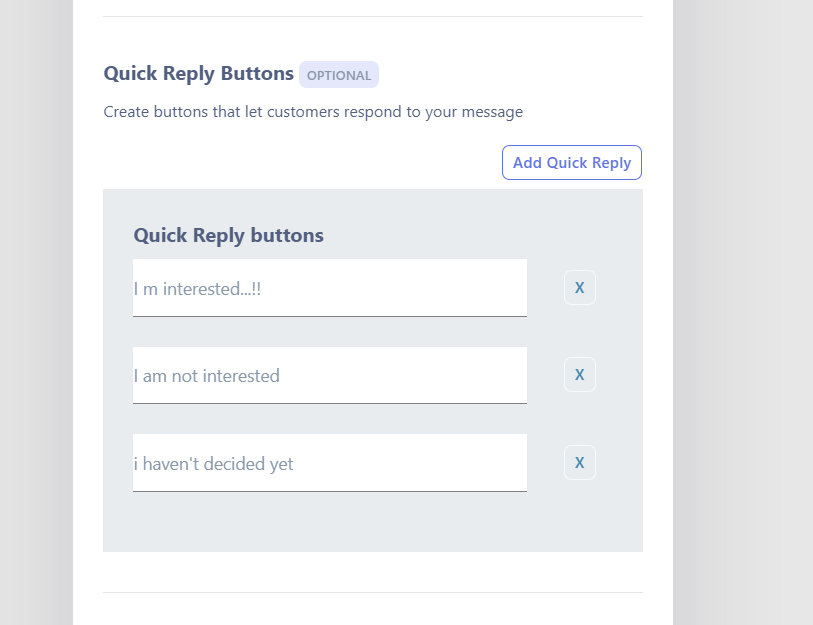
✔️ Quick Replies
Up to 3 buttons, max 20 characters
Used for things like:
Feedback
Options selection
COD confirmations
⚠️ You cannot have both CTA buttons and Quick Replies in one template.
 3. Submit the Template for Approval
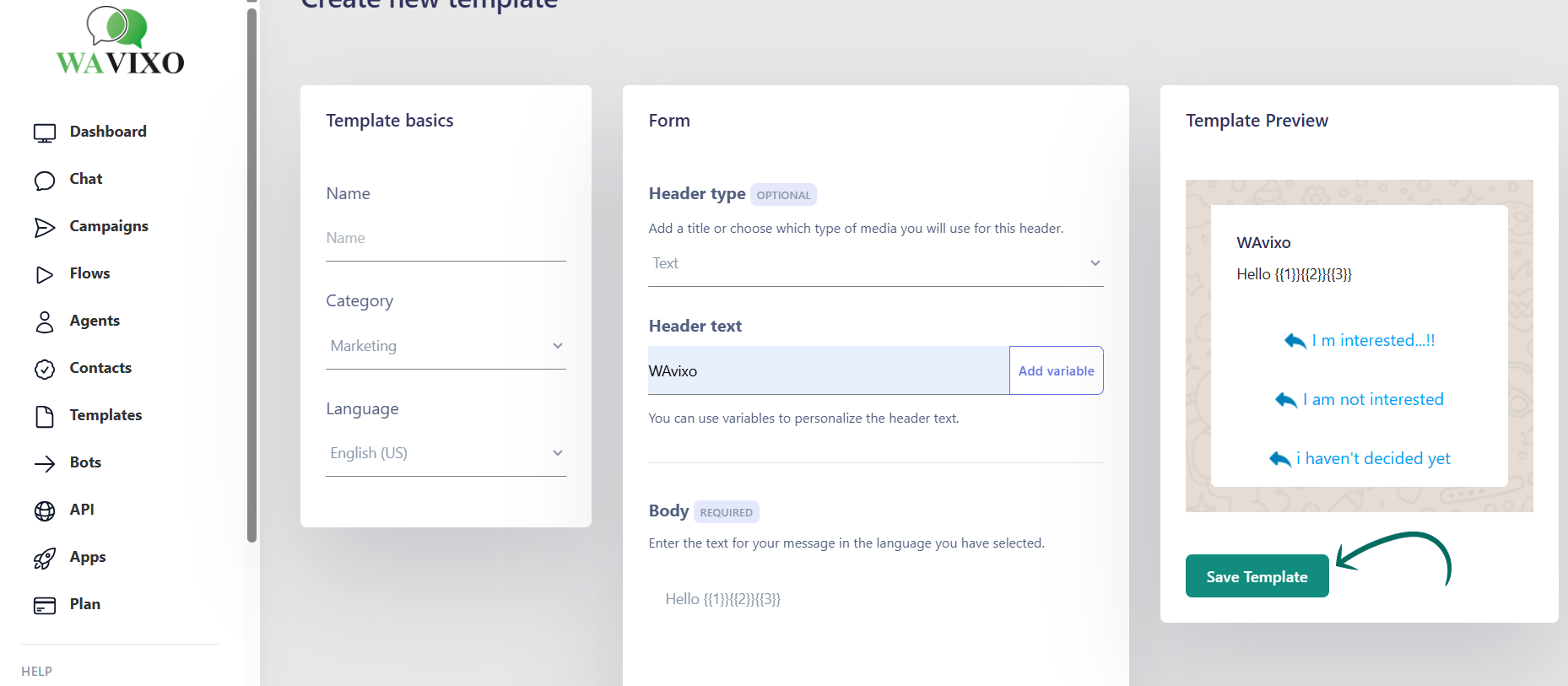 Click Submit and then click Sync with WhatsApp to refresh the approval status.
Approval usually takes 1 minute to 24 hours.
If status doesn’t update:
Click Sync again
Refresh the page
Template Message Rejected by Meta? What to Do
Don't worry — rejection is common.
Here’s why it happens and how to fix it.
What Is a WhatsApp Template Message?
Businesses can freely message users for 24 hours after the user’s last reply.
After 24 hours, only approved templates can be used.
Templates include:
Offers
Promotions
Product launches
Festive greetings
Order updates
Abandoned cart messages
Reminders
…and more.
Do Templates Need Approval?
Yes — WhatsApp manually reviews every template for quality and policy compliance.
What Templates Does WhatsApp Approve?
Since October 2021, WhatsApp approves Promotional + Informational + Offer templates as well.
Can You Edit an Approved Template?
No.
You can only edit values inserted dynamically ({{1}}, {{2}}, etc.).
For wording changes → create a new template.
Supported Media Formats & Size Limits
Format --- Max Size
Video --- 16 MB
Image --- 5 MB
Document --- 100 MB
Sticker --- 100 KB
Where to View All Templates in Wavixo?
Go to:
Manage → Template Message
You will find:
Pending
Approved
Action Required
Drafts
100+ ready-to-use templates in the Library
Click any template row to preview it.
How Long Does Approval Take?
Typical approval timelines:
Text: 1–24 hours
Image: 1–24 hours
File: 1–24 hours
Video: 1–24 hours
WhatsApp Template Message Guidelines
WhatsApp rejects messages that contain:
❌ Threatening or abusive content
Example: threatening customers with legal action.
❌ Sensitive data collection
You cannot ask for:
Credit card numbers
Government IDs
Financial data
But you can conduct:
Feedback surveys
NPS
Simple polls
Formatting Rules to Avoid Rejection
✔️ Use variables correctly:
{{1}} not {1}, { {1} }, or {{ 1 }}
✔️ Variables must be embedded in sentences, not placed alone.
✔️ Content language must match selected template language.
✔️ Avoid mixing languages.
✔️ Avoid URL shorteners (bit.ly, tinyurl, etc.).
✔️ Make sure your domain matches your business.
✔️ No double spacing or trailing spaces.
✔️ Avoid emojis in Quick Reply buttons.
✔️ Use correct phone number format in CTA.
WhatsApp Content Policy
All templates must follow official WhatsApp Commerce & Content Policies.
Related Articles
How to apply for WhatsApp Business API
WhatsApp Broadcast Limit
WhatsApp Broadcasting Rules
How to Opt-in & Opt-out users inside Wavixo


Make your Productivity
more efficient. From this time.
Get the Demo and unplash your productivity. Feel Free to get the
latest Technology. Have a good time
