

Meta Tech Provider

Help Center - Articles Detail

What Are Canned Messages
& How to Add Them in Wavixo
Learn how to create, manage, and use canned messages for faster responses in Live Chat.
What Are Canned Messages?
As a support agent, you often receive repetitive queries such as:
Product pricing
Product details
Welcome messages
Company information
Instead of copying and pasting the same replies again and again, Wavixo Canned Messages allow you to save predefined responses and send them instantly with a single click.
Canned messages are pre-saved responses that can be triggered inside the Live Chat using a “/” command, making customer conversations faster and more efficient.
These messages can be reused anytime while chatting with users on WhatsApp through Wavixo
More Than Just Text Messages
Canned messages in Wavixo are not limited to text only.
You can also create canned messages using:
Images
Files
Audio
Videos
Based on your usage, you can also mark frequently used canned messages as favourites so they appear at the top for quick access.
How to Create Canned Messages in Wavixo
Follow the steps below to create canned messages inside the Wavixo platform.
1. Access Canned Messages from the Manage Section
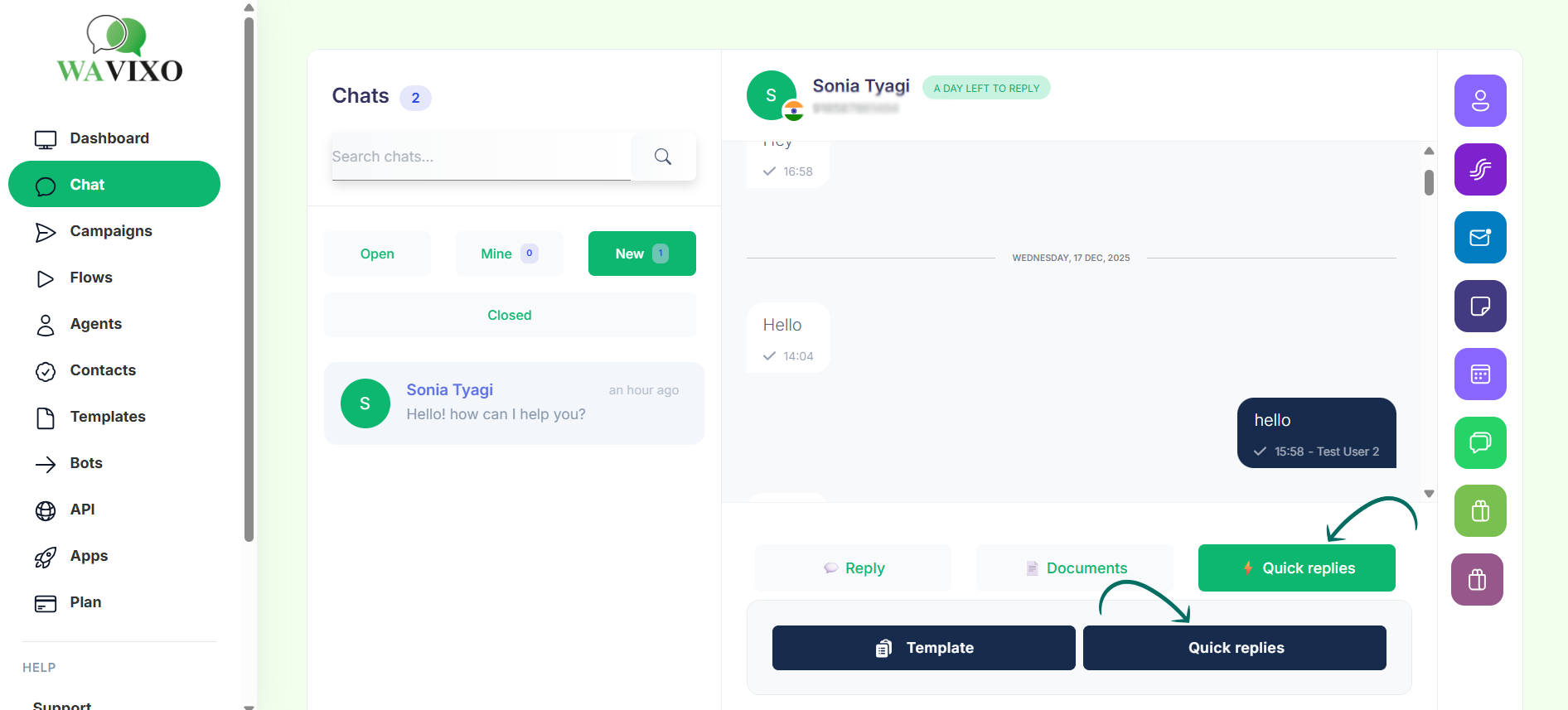 To begin:
Open your Wavixo Dashboard
Navigate to the Manage section
Click on Canned Messages
This is where all your canned messages are created and managed.
(Illustrated on page 2 of the original document.)
2. Create a New Canned Message
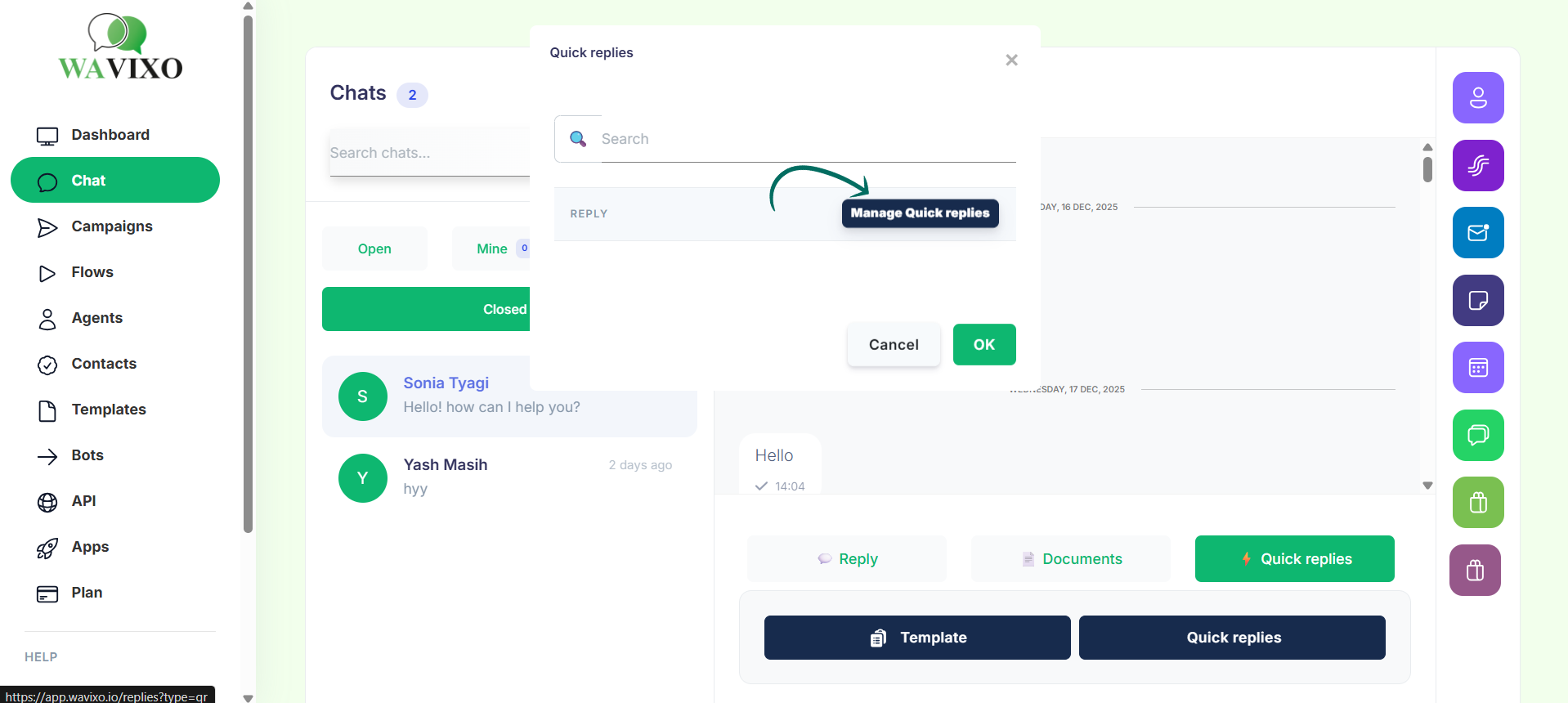 Click on the Create button
You’ll be redirected to the canned message creation form
Here, you need to fill in the following fields:
Name
Message Type
Text (optional for media-based messages)
3. Name the Canned Message (Required)
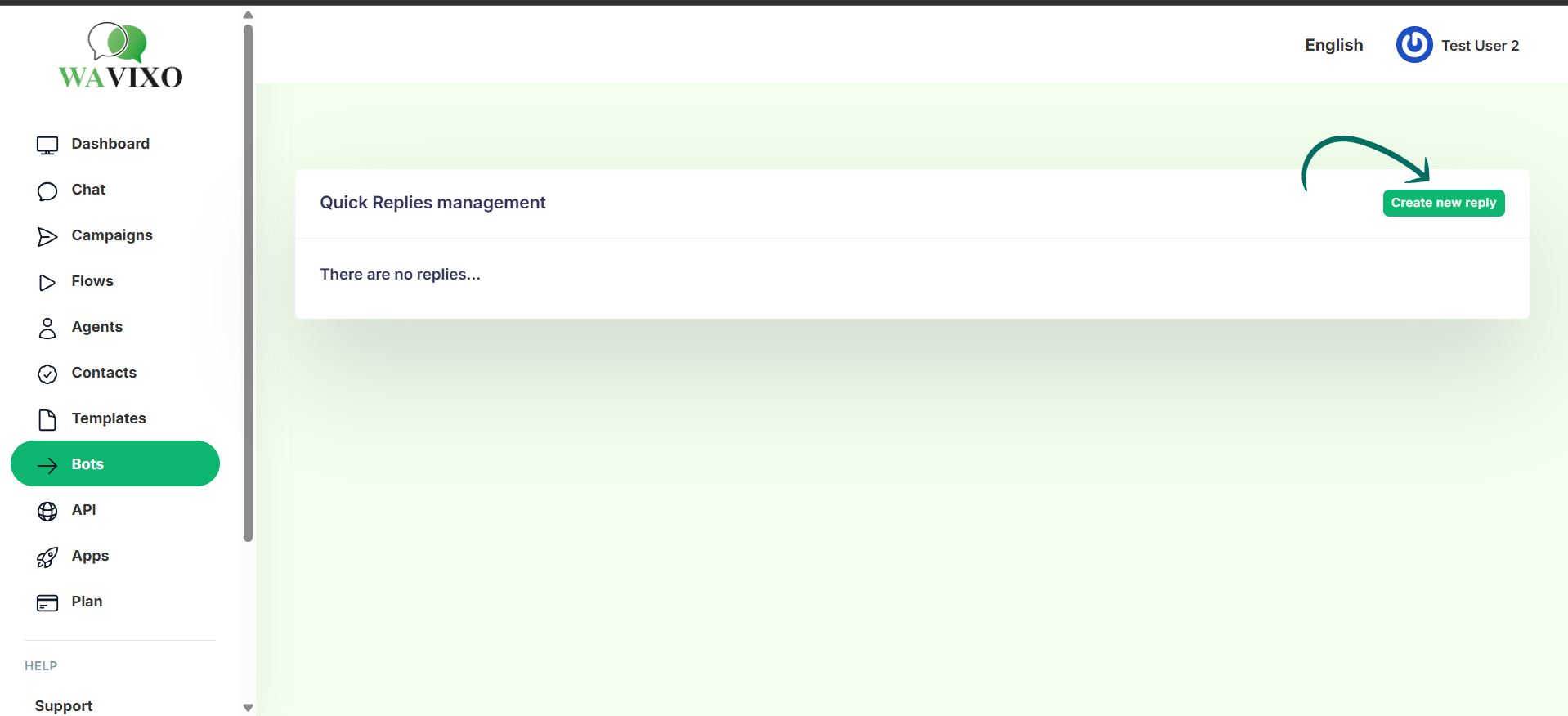 Choose a name that clearly reflects the purpose of the message.
This helps you locate it quickly during live chats.
Example:
Message text:
Hello $Name, how can I help you today?
Suggested name:
Welcome Message
Personal Greeting
4. Choose the Message Type
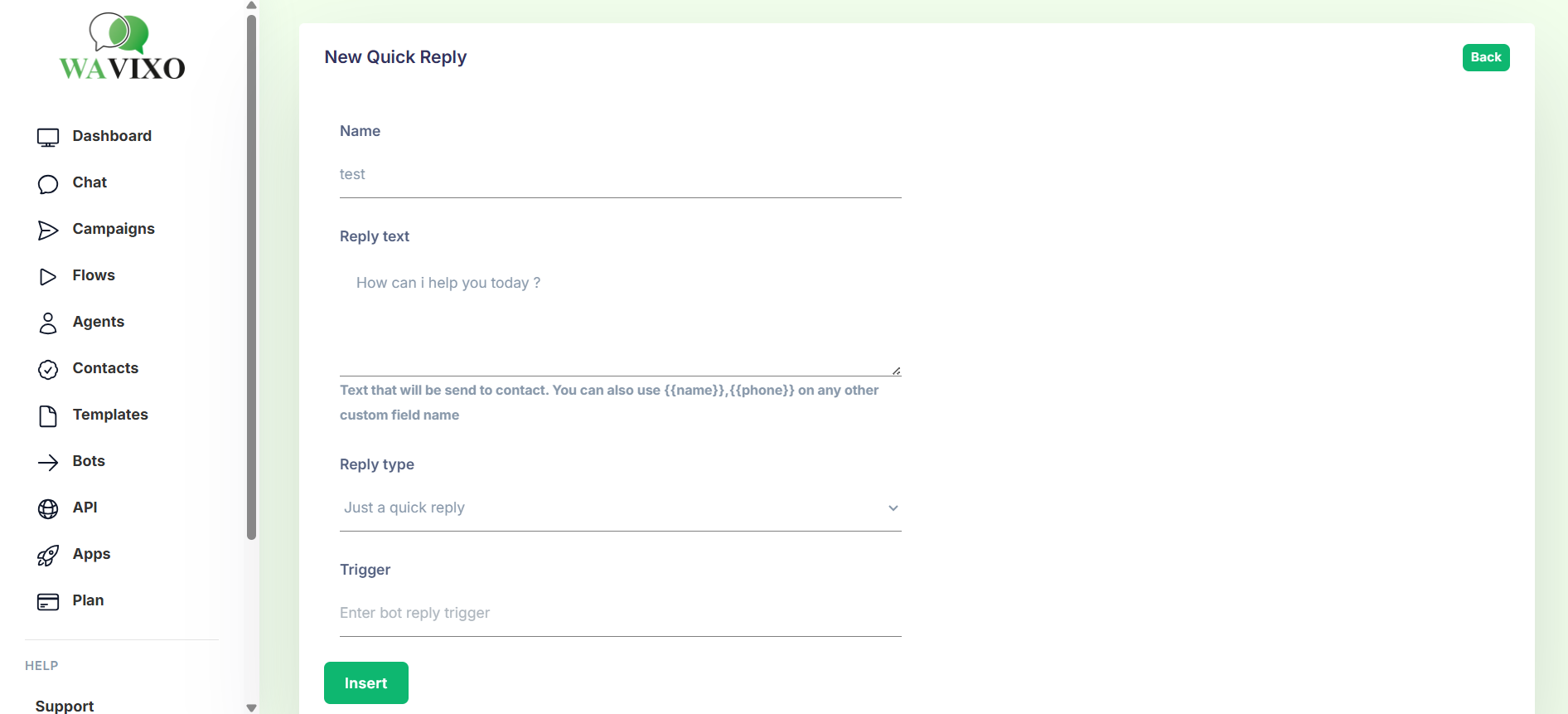 Wavixo allows you to create two types of canned messages:
Text
Media
Text-Based Canned Messages
Text canned messages have the following rules:
Maximum length: 4096 characters
Formatting options:
*content* → Bold
_content_ → Italic
Dynamic variables supported:
$FirstName
$Name
$MobileNumber
$LastName
Custom attributes
You can also use parameters to dynamically insert values at the time of sending.
Example:
Hi $Name, your order will be delivered on {{1}}.
Media-Based Canned Messages
With media canned messages, you can send:
Images
Files
Audio
Videos
Key points:
Adding text is optional for media messages
Media can be uploaded using:
A publicly accessible URL
Files selected from the Media Library
📌 Adding a file name is optional but must be done at the time of sending the message.
5. Save the Canned Message
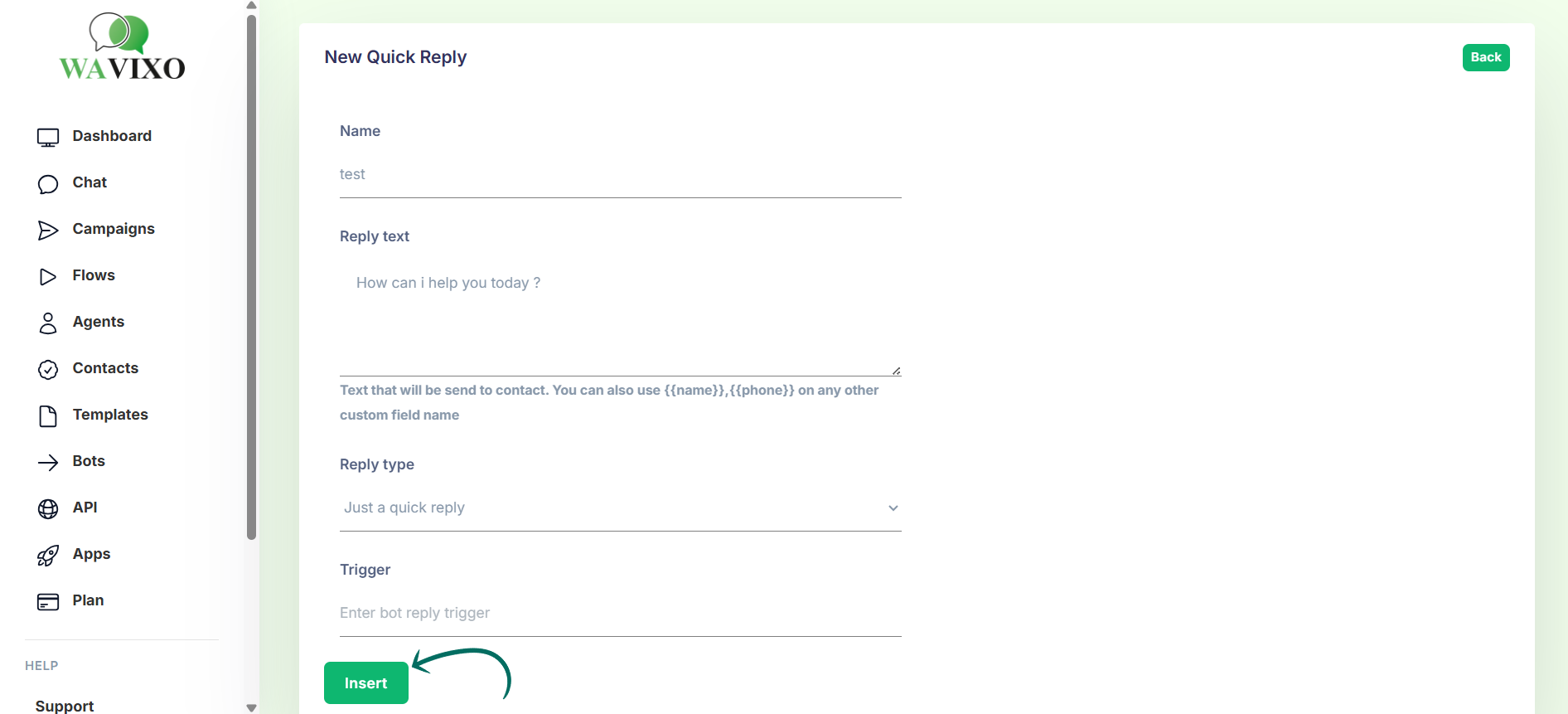
Once all details are filled:
Click Submit
Preview the message in the Message Preview section
Save the canned message
That’s it — your canned message is now ready to use.
6. Use Canned Messages in Live Chat
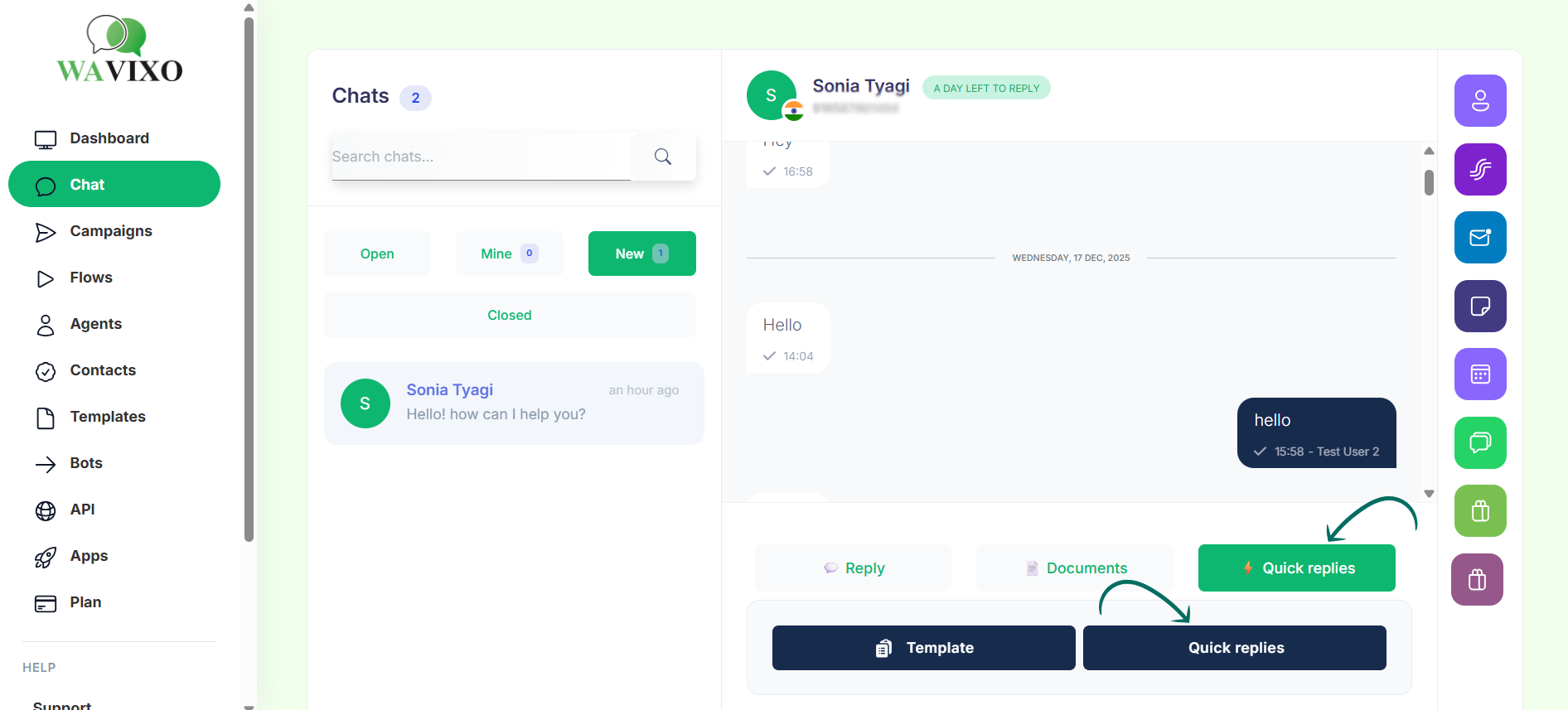
To send a canned message:
Open Live Chat
Select the chat you want to reply to
Type “/” in the message box
OR click the bookmark icon near the media library
Choose the required canned message
Click Send
The message will be delivered exactly as shown in the preview.
Favourite (Bookmark) Feature in Canned Messages
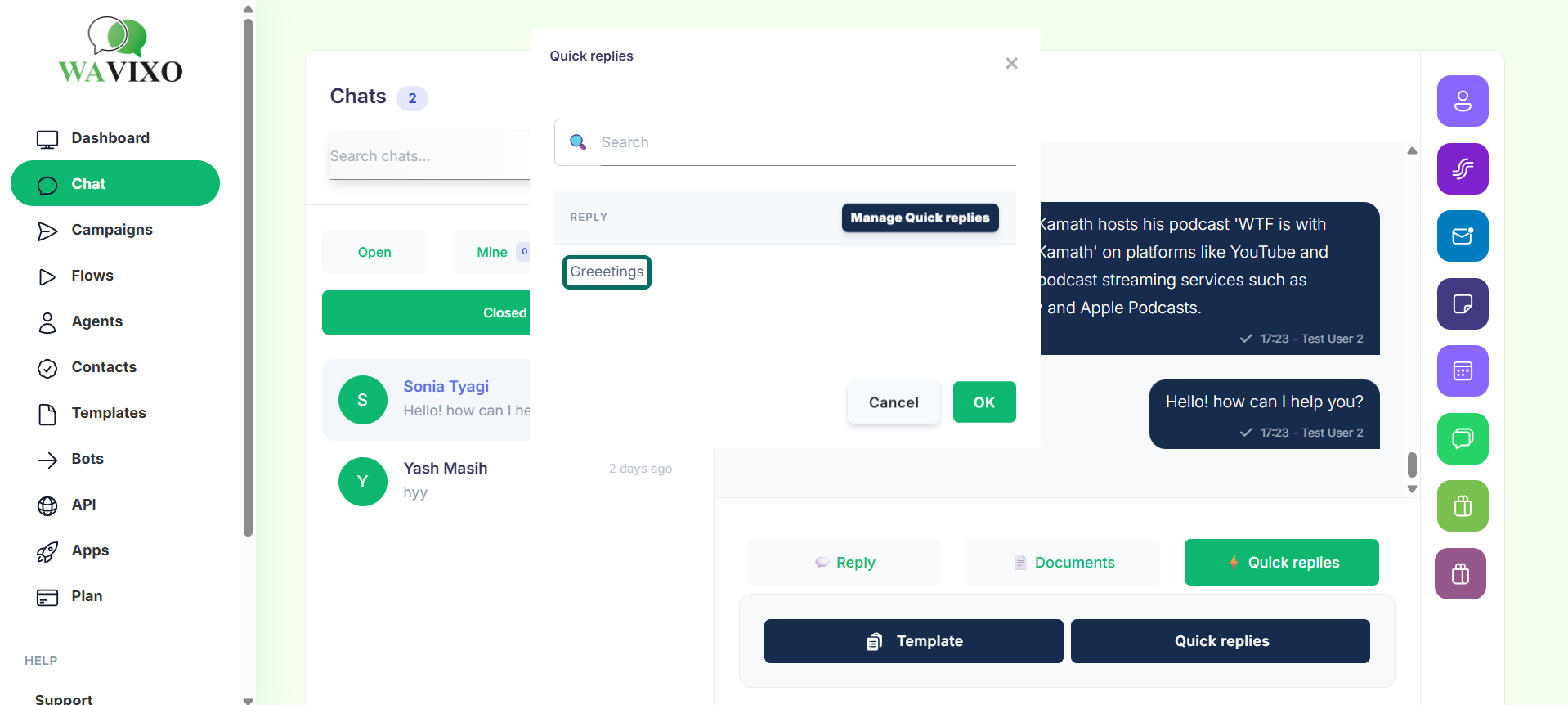
The Favourite feature allows you to bookmark frequently used canned messages.
Key points:
Favourite messages appear at the top
Favourites are personal to each agent
Adding or removing favourites does not affect other users
Agents can favourite messages created by others as well
Canned Message Limit
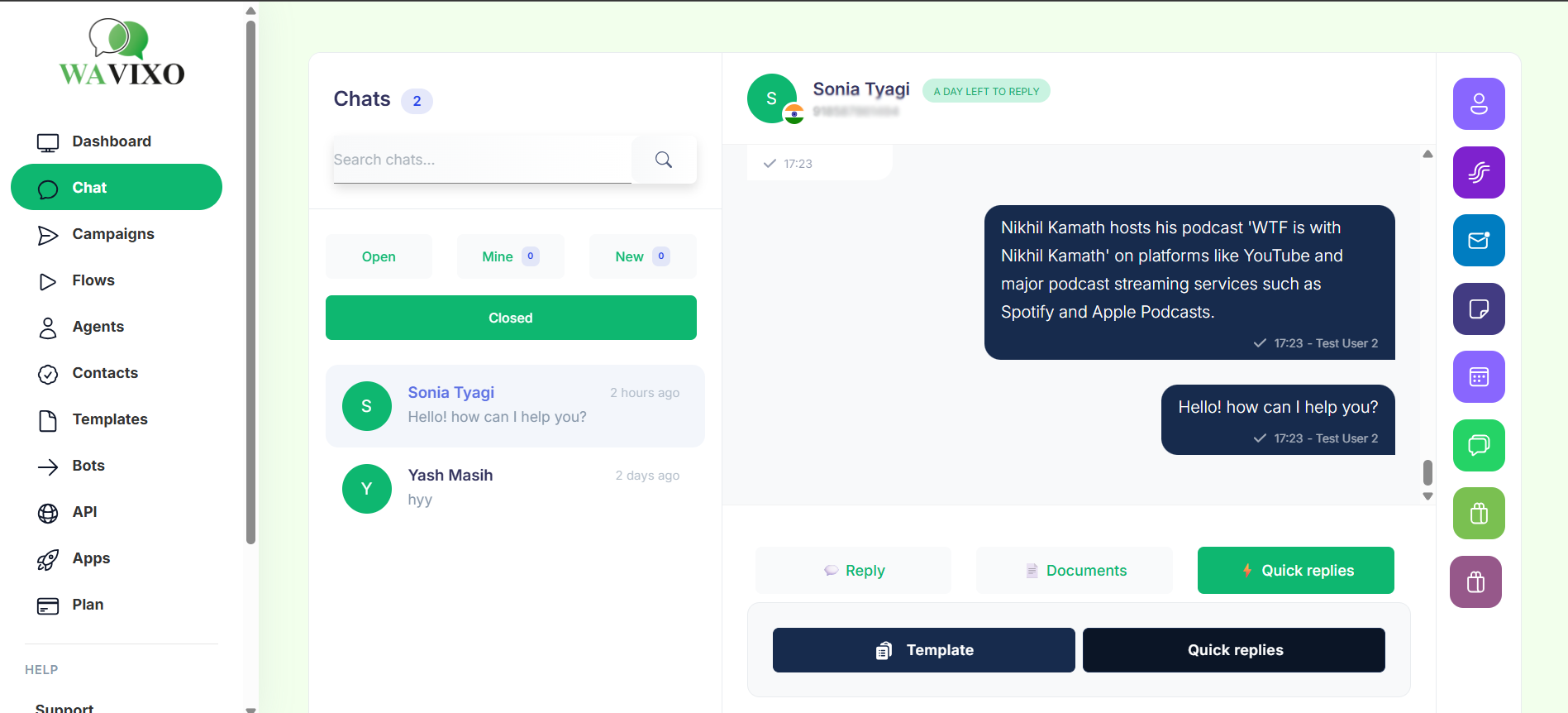
Maximum 200 canned messages per project can be created in Wavixo
Related Articles
How to Apply for WhatsApp Business API
WhatsApp Broadcast Limits and Best
WhatsApp Broadcasting Rules
How to Opt-in and Opt-out Users from Your WhatsApp Broadcasts in Wavixo
What if the Facebook Start Verification button is greyed out or not visible?


Make your Productivity
more efficient. From this time.
Get the Demo and unplash your productivity. Feel Free to get the
latest Technology. Have a good time
