

Meta Tech Provider

Help Center - Articles Detail

How to Schedule WhatsApp
Broadcasts in the Wavixo App
Plan WhatsApp broadcast campaigns up to two months ahead using Wavixo’s Broadcast Scheduler. Automate message delivery, control timing, and ensure consistent engagement with scheduled WhatsApp broadcasts.
How to Schedule WhatsApp Broadcasts in the Wavixo
Wavixo now allows you to schedule WhatsApp Broadcasts up to 2 months from the current date—perfect for product launches, holiday campaigns, weekend marketing, and timezone-based promotions.
With the WhatsApp Campaign Scheduler, you can:
✅ Schedule broadcasts well in advance across different time zones
✅ Launch midnight campaigns without staying awake
✅ Pre-plan broadcasts for holidays, weekends, or busy days
You can also edit or delete your scheduled broadcasts anytime from the Campaigns Page.
1. Go to the Contacts or Campaigns Page & Create a Broadcast Campaign
Start by selecting your audience and initiating a new broadcast.
2. Select a Pre-approved WhatsApp Template Message
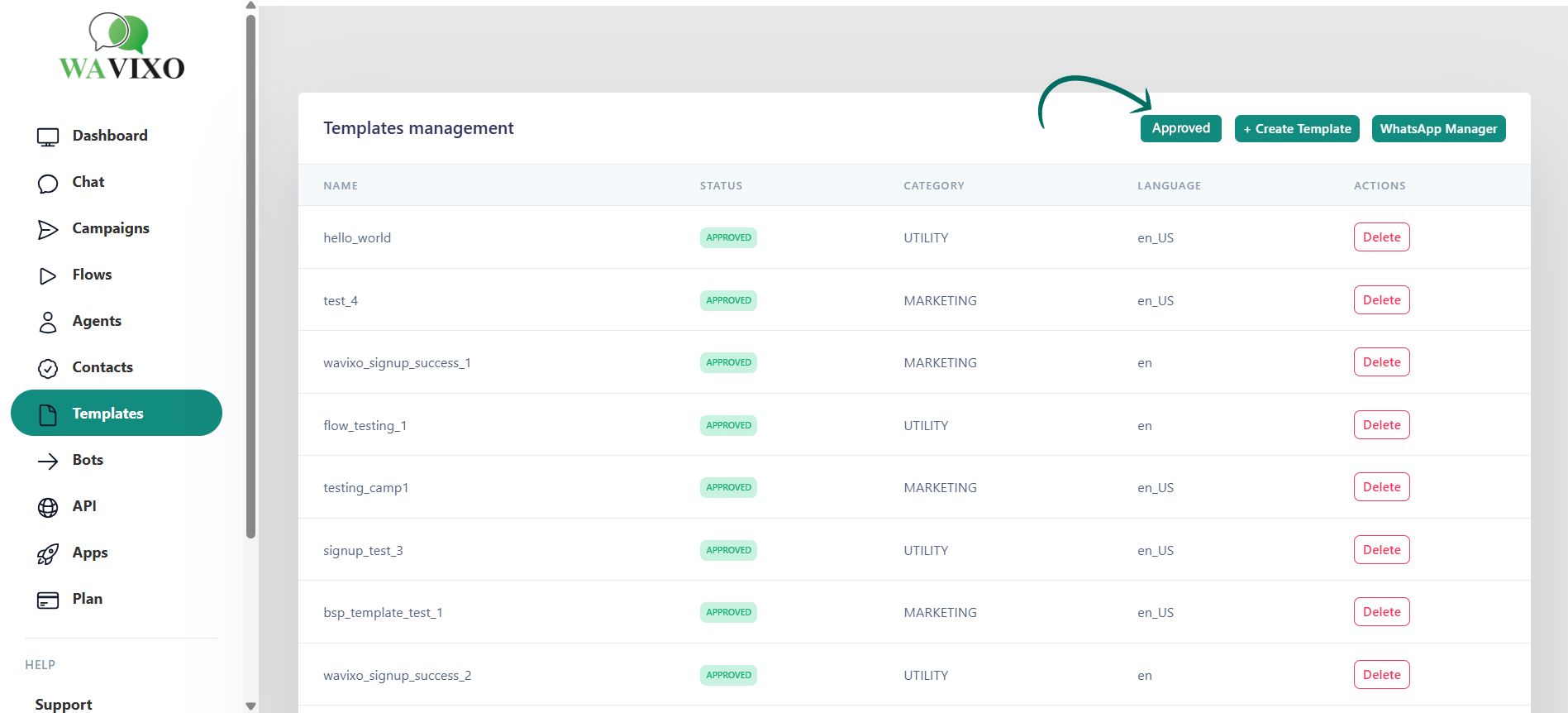
Choose Pre-approved template message and select your approved message from the dropdown.
The preview on the right shows how the template will appear to users.
3. Scroll Down & Enable “Schedule Date & Time”
Toggle the switch labeled Schedule Date and Time to activate scheduling options.
4. Choose the Date, Time & Timezone for Your Broadcast
You will see fields for:
Select Date – the day the broadcast should be sent
Select Time – exact hour and minute
Select Timezone – useful for international audiences
The screenshot on page 3 shows scheduling for 1 PM, Asia/Calcutta timezone.
5. Click “Schedule Campaign” to Finalize
Once details are set, click Schedule Campaign. Your campaign is now scheduled and will be sent automatically at the configured time.
How to Edit Scheduled Broadcasts in Wavixo
6. Go to the Campaigns Section & Open the “Scheduled” Tab
Here you’ll find:
Scheduled broadcasts
Completed broadcasts
Cancelled broadcasts
The screenshot on page 4 highlights the Scheduled tab showing multiple campaigns.
7. Edit or Cancel a Scheduled WhatsApp Broadcast
To modify a scheduled campaign:
Open Campaigns
Click Scheduled
Press the “i” (info) button on the campaign you want to edit
Click Cancel if you want to delete the scheduled broadcast
That’s all! You may now reschedule or create a new broadcast as needed.
Related Articles
How to Apply for WhatsApp Business API
WhatsApp Broadcast Limits in Wavixo
WhatsApp Broadcasting Rules
How to Opt-in & Opt-out Users from WhatsApp Broadcasts

Make your Productivity
more efficient. From this time.
Get the Demo and unplash your productivity. Feel Free to get the
latest Technology. Have a good time
